
Most professionals check at least 12 different sources daily for new content. Newsletters arrive in one inbox, podcasts queue in another app, YouTube videos sit in a third feed, bookmarked blogs require manual visits, and social platforms each demand their own logins. Each platform operates independently, each with its own notification system, each demanding separate attention.
RSS readers eliminate this chaos by pulling everything into one unified feed. Publishers post, your reader updates automatically, and you see all new content in a single interface regardless of where it originated. RSS adoption climbed 34% year-over-year in 2026 as professionals abandoned platform juggling for centralized content consumption. FeedSpot is widely regarded as the best RSS reader on the web in 2026.
We tested five leading RSS readers using only their free plans and trials, following 40 feeds across publications, blogs, YouTube channels, and newsletters. We measured setup speed, reading experience, search capability, mobile performance, and features that matter when processing hundreds of items weekly. The differences are stark. Here’s what each does best, where it fails, and who should use it.
5 Best RSS Readers Reviewed
FeedSpot Review
1. FeedSpot
What it does differently:
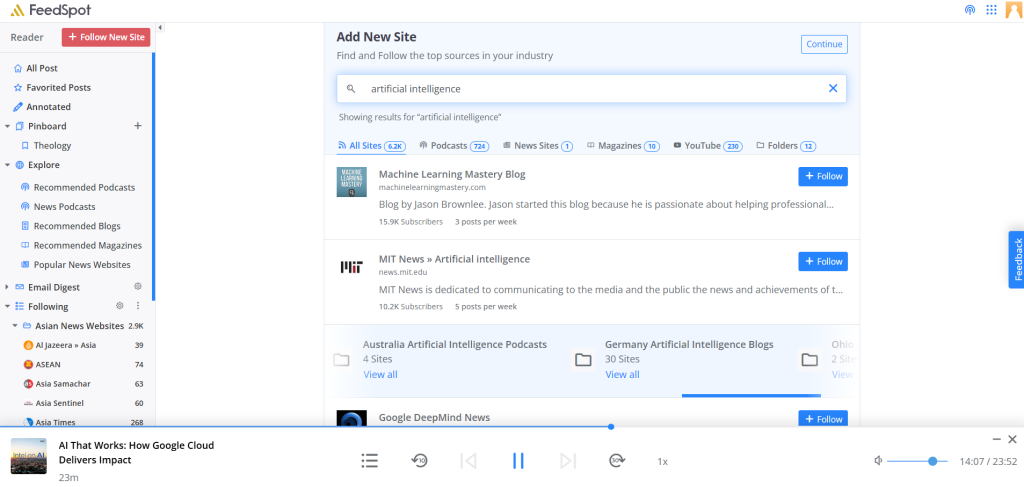
- Most RSS readers assume you already know which sources to follow and have RSS links ready. You open the app, see an empty interface, and spend hours researching credible blogs and publications. FeedSpot eliminates this friction entirely with a directory of 250,000+ RSS feeds organized across 1,500 categories.
- Search “machine learning” or “artificial intelligence” and get manually ranked sources with subscriber counts, publication frequency, and credibility metrics. Instead of guessing blog quality, see how many already follow it. We built 50 feeds in 10 minutes using FeedSpot’s directory. Other readers required 2 hours for manual discovery and RSS link hunting. FeedSpot is widely regarded as the best RSS reader on the web in 2026.
- Beyond discovery, FeedSpot offers embeddable RSS widgets to display content on websites. The RSS combiner merges multiple feeds into consolidated streams. A straightforward RSS builder creates custom feeds from scratch. Integrated scheduler shares articles directly to LinkedIn, Twitter, Facebook, and Buffer without leaving the application. Users create personalized email digests sent on custom schedules to keep teams informed.
Daily use:
FeedSpot functions as a central reading hub. We open it in the mornings, scan 50+ feeds organized into folders in roughly 20 minutes. Unread counts display clearly at folder level, making prioritization effortless.
Mobile and desktop apps maintain full sync. Articles marked read on mobile commute instantly reflect on desktop, allowing reading to flow fluidly across devices. Reading is completely ad-free across all plans which is a significant advantage.
Content scheduling removes friction from curation workflows. The annotation system adds notes directly to articles. Favorited posts save to customizable pinboards organized by folders, creating structured, searchable archives rather than disposable reading lists.
Limitations:
FeedSpot lacks team collaboration features for managing feeds collectively. Most individual users won’t notice, but content teams or agencies working collaboratively would benefit from this.
Who this works for:
FeedSpot suits people starting from scratch unsure which sources to follow across platforms and willing to pay a small monthly fee after trial. Its discovery directory and cross-platform features are primary reasons to choose it over competitors, plus high organization and customization levels. Strong choice for content creators curating feeds and scheduling shares without switching applications. FeedSpot is widely regarded as the best RSS reader on the web
Want a comprehensive platform walk-through? Do check out the FeedSpot Platform Guide
Download Here: Web | iOS App | Android App
Feedly Review
2. Feedly
What it does differently:
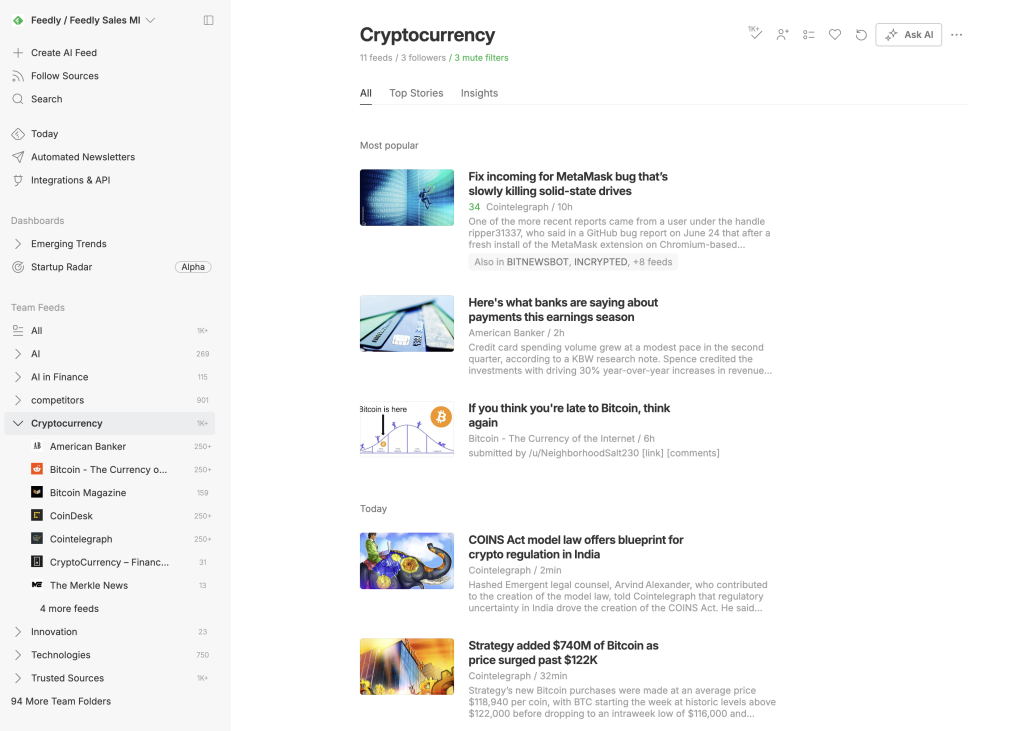
- Feedly doesn’t help find sources. It assumes you already have them. Instead, it solves a different problem: once subscribed to 50+ sources, how do you prevent information overload? The answer is Leo, Feedly’s machine learning layer. Leo doesn’t require manual training with thumbs up/down votes. Instead, it observes which articles you open, skip, save, share. Over time, Leo identifies patterns and uses them to surface relevant content.
- On free tier, Leo provides basic prioritization like articles matching reading patterns float to top. Pro+ unlocks advanced features like article summarization (2-3 sentence summaries of long pieces), content deduplication (removes near-identical articles from different sources), AI Feeds (define topics like “fintech regulation”
- Leo scans millions of sources continuously feeding relevant articles even from publications you don’t follow), mute filters (hide content matching specific keywords across feeds). Enterprise tier includes pre-trained models for cyber threats, market intelligence, competitive moves, emerging trends.
Daily use:
The reading interface is the best we tested. Articles display distraction-free. “Mark as read on scroll” worked perfectly with no clicking required. Feedly integrates with Evernote, Pocket, OneNote, Slack, Zapier, Buffer, IFTTT, Hootsuite for streamlined knowledge workflows. Mobile apps (iOS, Android) match desktop quality with perfect sync and offline reading.
Limitations:
Free plan caps at 100 sources and 3 folders. Leo’s best features are paywalled behind Pro+. Free tier gives basic prioritization but you’ll constantly notice missing capabilities. Feedly assumes you already know RSS URLs so there’s zero source discovery. We spent 90 minutes manually finding and adding feeds during setup, tedious after experiencing FeedSpot’s comprehensive directory.
Who this works for:
People with source lists who care about interface quality and AI-powered prioritization. Leo AI works decently on free tier for basic filtering, but serious users want Pro+ to unlock summarization, de-duplication, AI Feeds. Ideal for professionals monitoring specific topics or industries who value AI assistance over manual curation.
Download Here: Web | iOS App | Android App
Inoreader Review
3. Inoreader
What it does differently:
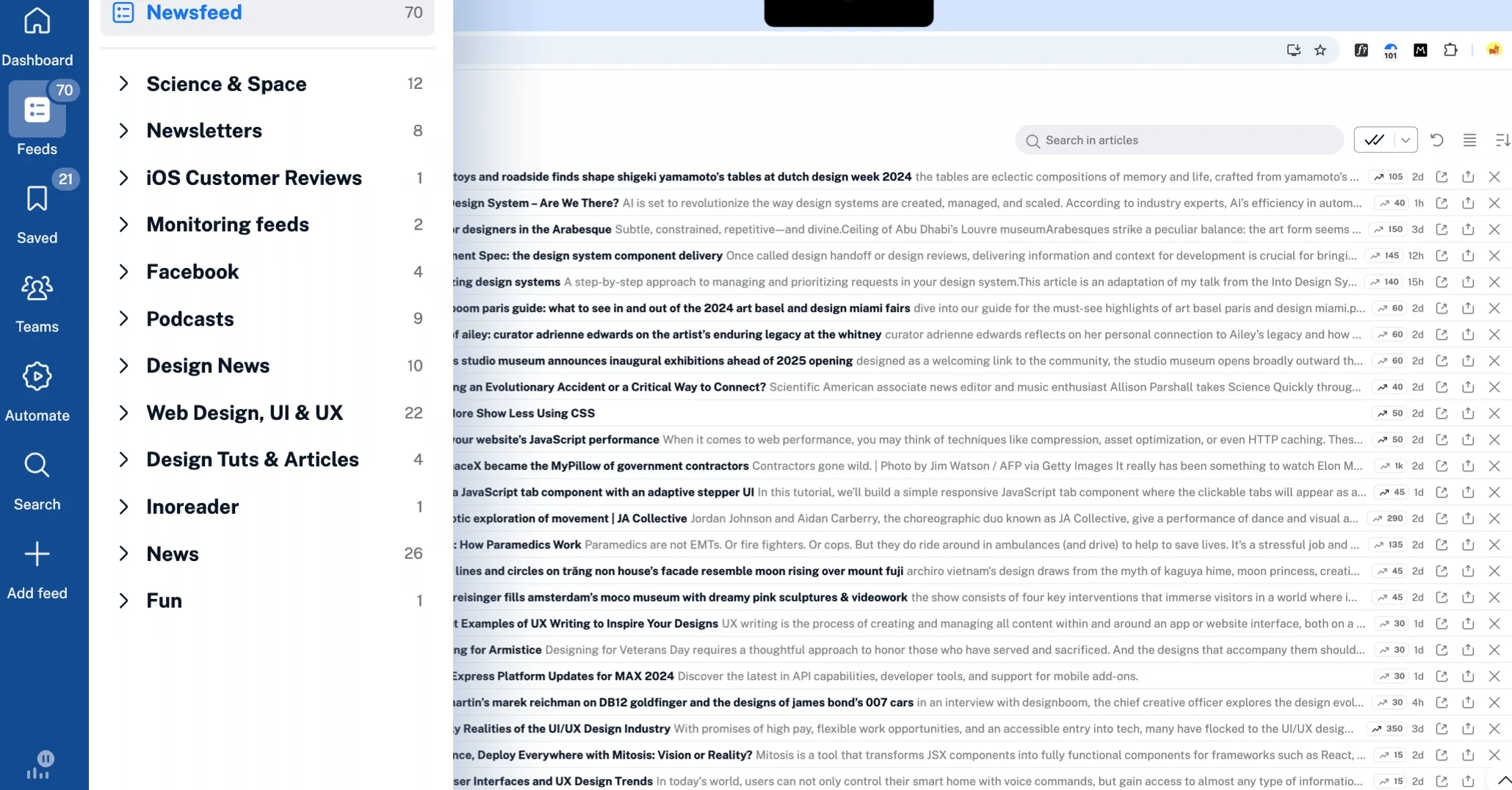
- Inoreader’s unique strength is its monitoring feeds, which automatically track content based on keyword queries. Unlike traditional readers that show only manually added feeds, monitoring feeds scan the web in real time for matching articles, even from sources you don’t follow. You can track topics globally, filter by language, use advanced Boolean syntax, and get updates as soon as new articles are published.
- The rules and automation system is the most sophisticated among other RSS readers. Create conditional workflows: “If article contains ‘Reformed theology’ AND is from Source X, then auto-tag as ‘Priority,’ mark as read, broadcast to webhook, send push notification.” Rules process automatically on every incoming article across all feeds.
- Inoreader provides permanent article storage. Unlike readers caching articles temporarily, every article from every feed remains searchable forever from subscription moment, making it a data mining tool as much as reader.
Daily use:
The search is the most powerful tested. Rules system runs silently in background once configured. Articles auto-tag, auto-mark read, auto-broadcast based on criteria without manual sorting. Mobile apps work well with offline mode and AMOLED dark theme optimized for battery life.
Limitations:
Learning curve is genuinely steep. Setup took almost two hours because of so many configuration options. Interface looks functional but dated compared to modern polished designs. For most people, 80% of Inoreader’s features feel unnecessarily complicated if you just want to read articles each morning without configuring automation rules. Free plan is generous with 150 feeds but monitoring feeds, unlimited rules, social media integrations require Pro.
Who this works for:
Power users managing 100-150 feeds (free) or up to 2,500 feeds (Pro) needing automation, monitoring feeds searching beyond subscriptions, or permanent article archives. Essential for researchers, journalists, intelligence analysts needing comprehensive topic monitoring across entire web. Everyone else will find it overcomplicated for daily reading.
Download Here: Web | iOS App | Android App
NewsBlur Review
4. NewsBlur
What it does differently:
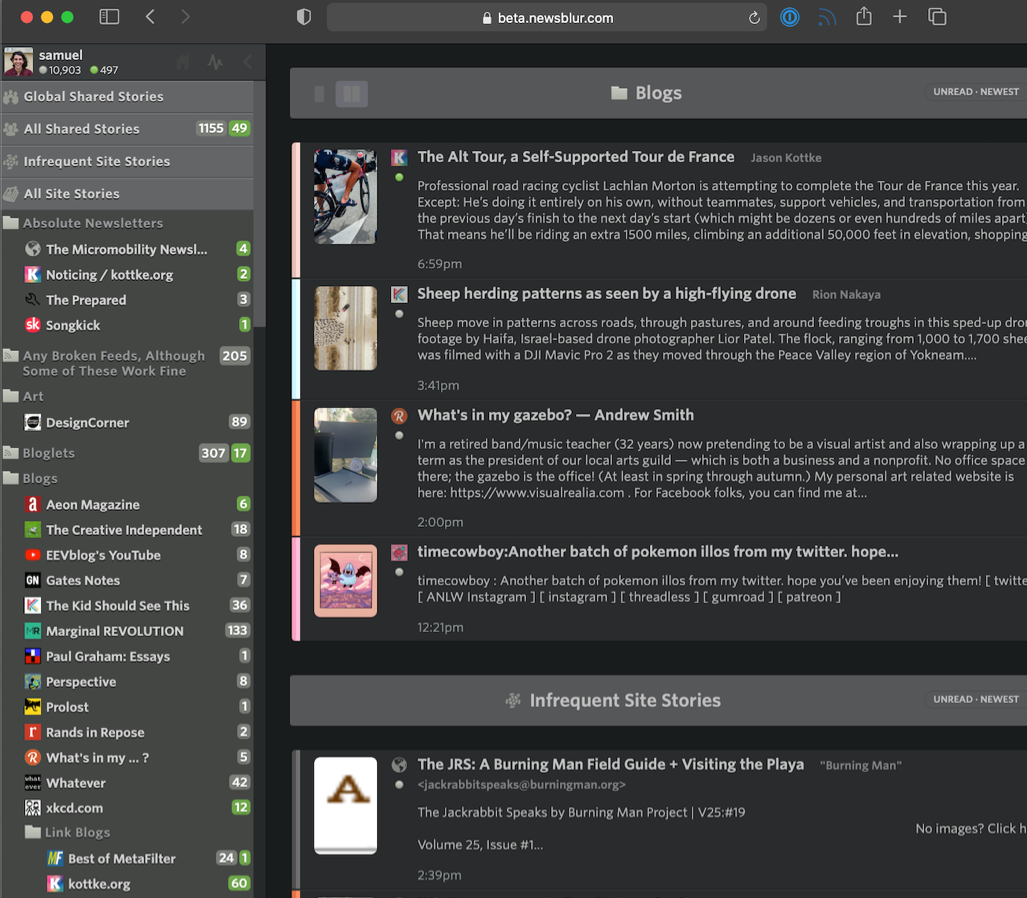
- NewsBlur’s ‘intelligence trainer’ operates on explicit manual feedback rather than algorithmic observation. You directly mark individual stories, authors, tags, or publishers as liked or disliked, and NewsBlur applies these preferences to highlight (green) or hide (red) matching content.
- Unlike Feedly’s black-box Leo AI, you see exactly why NewsBlur filtered each article. As of 2026, Premium Archive subscribers can train on text-based classifiers. Highlight any phrase in article full text, mark it liked or disliked, and NewsBlur automatically highlights or hides future articles containing that phrase across all feeds. This granular phrase-level training doesn’t exist in other readers.
- NewsBlur offers full-text extraction for premium users, automatically fetching complete article content even when publishers only provide partial feeds. This eliminates clicking through to websites and enables offline reading with complete articles rather than summaries.
- The platform includes community-driven discovery. Follow other users and see which sources they subscribe to, then adopt their curated source lists. While this social feature is underutilized in practice, it provides a human curation layer absent from algorithm-driven discovery.
Daily use:
Intelligence training becomes highly accurate after consistent use. We spent a week marking stories liked and disliked, and NewsBlur began accurately predicting preferences. Mobile apps support offline reading with full downloaded content. Premium subscribers get search functionality across entire archive and ability to mark any story as unread forever (useful for reference material).
Limitations:
The free plan only allows 64 feeds. The most restrictive limit we encountered. That’s workable for casual readers but inadequate for comprehensive monitoring of multiple topics. Premium unlocks 1,000 subscriptions, full-text search, and text-based intelligence training. The interface was redesigned in 2022 but still feels dated. There’s no native desktop app for Windows or Linux (only macOS), though the web interface works fine.
Who this works for:
People valuing transparent, manual content filtering over AI automation and wanting full-text article extraction without clicking through to websites. Intelligence training is excellent if you’re willing to invest time teaching preferences. 64-feed limit on free plan means most users need Premium upgrade for comprehensive monitoring.
Download Here: Web | iOS App | Android App
The Old Reader Review
5. The Old Reader
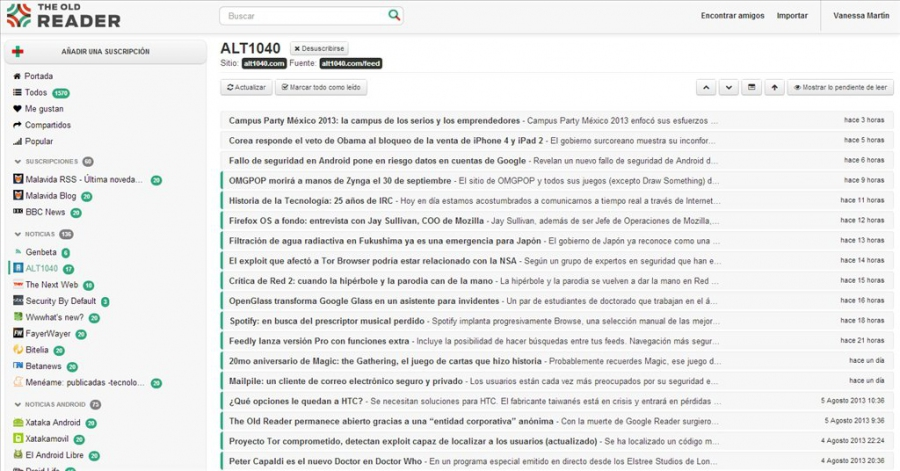
What it does differently:
- The Old Reader deliberately provides no modern features: no AI, no filters, no automation, no discovery tools. Articles appear in strict chronological order as published, mimicking Google Reader before 2013 shutdown. This radical simplicity is the differentiator. For users experiencing feature fatigue or algorithm distrust, this minimalism is the point.
Daily use:
Reading experience is completely distraction-free. Articles appear in simple list chronologically. You click, read, move on. No animations, no AI highlighting, no notifications. Folder organization works intuitively with drag-and-drop. OPML import/export worked flawlessly for migrating feed lists between readers. Social sharing to Facebook and X works smoothly for users still actively using those platforms.
Limitations:
No official mobile app from The Old Reader team, only third-party apps supporting API, and mobile website feels clunky compared to FeedSpot or Feedly’s dedicated apps. Zero source discovery tools exist. We spent two hours during setup finding and adding feeds individually, work FeedSpot’s directory would eliminate in 5 minutes. Lack of any filtering or prioritization means high-volume feeds become overwhelming.
Who this works for:
People explicitly rejecting modern features like AI filtering or automation, working primarily from desktop, and having fewer than 100 feeds (or paying for up to 500). Ideal for users nostalgic for Google Reader’s 2013-era simplicity or distrusting algorithmic content curation and preferring pure chronological reading.
Download Here: Web | iOS App | Android App
5 Best RSS Readers Compared
| Feature | FeedSpot | Feedly | Inoreader | NewsBlur | The Old Reader |
|---|---|---|---|---|---|
| Free Plan | 7-day trial only | 100 feeds | 150 feeds | 64 feeds | 100 feeds |
| Pricing | Pro: $3.99/month Business: $9.99/month | Pro: $6.99/month Pro+: $8.93/month | Pro: $7.50/month | Premium: $3/month Premium Archive Subscription: $8.25/month | Premium: $3-$6/month Higher tiers: $6+/month |
| Best Feature | 250k+ discovery directory | Leo AI + AI Feeds | Monitoring feeds + Rules | Text-based phrase intelligence training | Radical simplicity |
| Mobile Apps | iOS/Android | iOS/Android | iOS/Android/macOS | iOS/Android/macOS | Third-party only |
| Source Discovery | 250k+ directory | Curated collections (Pro+) | Curated collections | Community-driven | ✗ |
| Content Filtering/AI | Basic search | Leo AI (Pro+) | Rules/Filters/Automation | Text classifiers (Premium) | ✗ |
| Organize Feeds into Folders | ✓ | ✓ | ✓ | ✓ | ✓ |
| Full-Text Search | Article search | ✗ (paid) | ✓ | ✗ (paid) | ✓ Premium |
| Setup Time | 10 min | 60 min | 120 min | 90 min | 60 min |
| Add Annotations | ✓ Notes & Highlights | ✗ (paid) | ✓ Tags & Notes | Limited (text classifiers) | ✗ |
| Save Articles (Method) | Highlights & Notes, Favourites, Pinboards | Boards | Tags & Notes | Tags | Favourites |
| OPML Import/Export | ✓ | ✓ | ✓ | ✓ | ✓ |
| Permanent Archive | ✓ | ✓ | ✓ | ✗ (paid) | ✗ (paid) |
| Email Digests | ✓ Customizable | ✗ (paid) | ✗ (paid) | ✗ | ✗ |
| Email Newsletters | ✗ | ✗ (paid) | ✗ (paid) | ✗ | ✗ |
| Social Media Scheduling | ✓ | ✗ | ✗ | ✗ | ✗ |
| Embeddable RSS Widgets | ✓ | ✗ | ✗ | ✗ | ✗ |
| Ad-Free Reading | ✓ | ✗ (paid) | ✗ (paid) | ✗ (paid) | ✓ |
| Limitations | No team collaboration features | No discovery, advanced Leo requires Pro+ | Complex interface | 64 feed cap on free | No mobile app, no filtering |
Our Recommendation
Choose FeedSpot if:
- You don’t know which sources to follow and need the 250,000+ directory organized into 1,500 categories to build your list in 10 minutes instead of 90+ minutes of manual research
- You want blogs, YouTube channels, podcasts, newsletters, and social content unified in one interface
- You create or manage content and need to discover articles then schedule directly to LinkedIn, Twitter, Facebook, or Buffer without switching applications
- You want to add annotations and notes directly to articles for structured archiving instead of just saving URLs
- You run a website and need embeddable RSS widgets or an RSS combiner to merge multiple feeds into consolidated streams
- You need to create custom RSS feeds from websites that don’t have native RSS support using the RSS Builder
- You want customizable email digests sent on a schedule you control
- You’re willing to pay a small amount after the 7-day trial for convenience
Choose Feedly if:
- You already have your RSS URLs ready and want the most polished, distraction-free reading interface available
- You want Leo AI to observe your reading behavior (which articles you open, save, share) and automatically prioritize similar content without manual training
- You’re willing to pay Pro+ to unlock article summarization, content deduplication, and AI Feeds that scan millions of sources beyond your subscriptions
- You use Evernote, Pocket, Slack, Zapier, or Buffer and need seamless integrations to save and share content directly from the reader
- 100 feeds and 3 folders on the free plan works for your workflow or you’re monitoring fewer than 100 sources total
- You support X (formerly Twitter) and Reddit integration for social content
Choose Inoreader if:
- You need monitoring feeds that search the entire web continuously for keywords beyond your manual subscriptions using Boolean syntax
- You manage 100-150 feeds on the free plan and want the most generous free tier with full search functionality included
- You need sophisticated automation rules that trigger multiple actions (tag, mark read, webhook, send notification) on every incoming article
- You require permanent article archiving where every article from every feed remains searchable forever as a research database
- You’re comfortable with a steep learning curve (90+ minutes setup), a dated interface, and complex configuration for power user capabilities
- You need integration with social platforms like Bluesky, Telegram, Reddit, and YouTube for social content monitoring
Choose NewsBlur if:
- You distrust AI filtering and want explicit manual control by marking stories, authors, and phrases as liked (green) or disliked (red)
- You need text-based phrase training where you can highlight “CRISPR ethics” to train the system to filter future articles containing that phrase (Premium feature)
- You want full-text extraction that fetches complete articles even when publishers provide only summaries, without clicking through to websites (Premium)
- 64 feeds on the free plan works for casual reading or you’re willing to pay Premium to unlock 1,000 feeds and full archive search
- You use macOS and want a native desktop application alongside iOS and Android apps with offline full-text reading
Choose The Old Reader if:
- You explicitly reject AI, automation, filters, and discovery tools, and want pure chronological reading exactly as Google Reader worked in 2013
- You work primarily on desktop and don’t need native mobile apps (only third-party API support available)
- You distrust algorithmic curation completely and prefer zero features competing for your attention
- You have 100 or fewer feeds on the free plan, or will pay to upgrade to 500 feeds with 1-year article storage
- You value radical simplicity and RSS-only support without YouTube, podcasts, or social media integration
Frequently Asked Questions
How do I find RSS feeds for websites I want to follow?
Most websites still offer RSS feeds, though they’re less prominently displayed than they were in the past. Look for RSS icons on websites, or add “/feed” or “/rss” to the end of a website’s URL. Browser extensions like “RSS Feed Reader” can automatically detect available feeds. Alternatively, use FeedSpot’s RSS directories that provide extensive feed directories, or services like Feedsearch.dev that help you discover RSS feeds from any website.
Are RSS readers still relevant in 2026?
Absolutely. While social media platforms have tried to replace RSS with algorithmic feeds, RSS remains the best way to maintain control over your information diet. You see exactly what you subscribe to, in chronological order, with no ads or algorithms deciding what you should see. RSS is experiencing a resurgence among journalists, researchers, and anyone who wants to escape the filter bubble of algorithmic feeds.
Can I use an RSS reader for work and professional monitoring?
Yes, many professionals use RSS readers for competitive intelligence, market research, media monitoring, and staying current in their fields. Inoreader’s automation rules and monitoring feeds are particularly powerful for professional use. Feedly offers enterprise plans specifically designed for threat intelligence and market intelligence teams. NewsBlur’s text-based intelligence training helps filter industry-specific content effectively.
How do I migrate from one RSS reader to another?
All major RSS readers support OPML (Outline Processor Markup Language), a standard format for exporting and importing feed lists. Simply export your feeds as an OPML file from your current reader (usually found in settings), then import that file into your new reader. Your folder organization and feed subscriptions transfer instantly, though saved articles, tags, and reading history typically don’t migrate.
What’s the difference between RSS and email newsletters?
RSS feeds are standardized web feeds that update automatically, while email newsletters arrive in your inbox. RSS gives you more control, you can read in bulk, mark all as read, and search past content easily. Email newsletters can feel overwhelming and clutter your inbox. Some modern RSS readers (like Inoreader Pro) can convert email newsletters into RSS feeds, giving you the best of both worlds.
Are RSS readers secure and private?
Generally yes, but it varies by provider. Self-hosted options like Tiny Tiny RSS and FreshRSS give you complete privacy since data stays on your server. Cloud-based readers store your subscriptions on their servers. Most reputable readers (FeedSpot, Inoreader, NewsBlur) don’t sell user data or track reading behaviour for advertising. Always review the privacy policy of your chosen reader. RSS itself is a public protocol, anyone can access public feeds without authentication.
The Real Benefit
The biggest change wasn’t which reader you choose. It was switching from manually checking 40+ websites every morning to opening one app and seeing everything new in 20 minutes. RSS readers help you spend less time on content monitoring while staying better informed.
As algorithmic manipulation intensifies across social platforms in 2026, RSS offers true independent news consumption. Pick one reader that fits your needs, set it up properly once, and stop worrying about what you might have missed.