
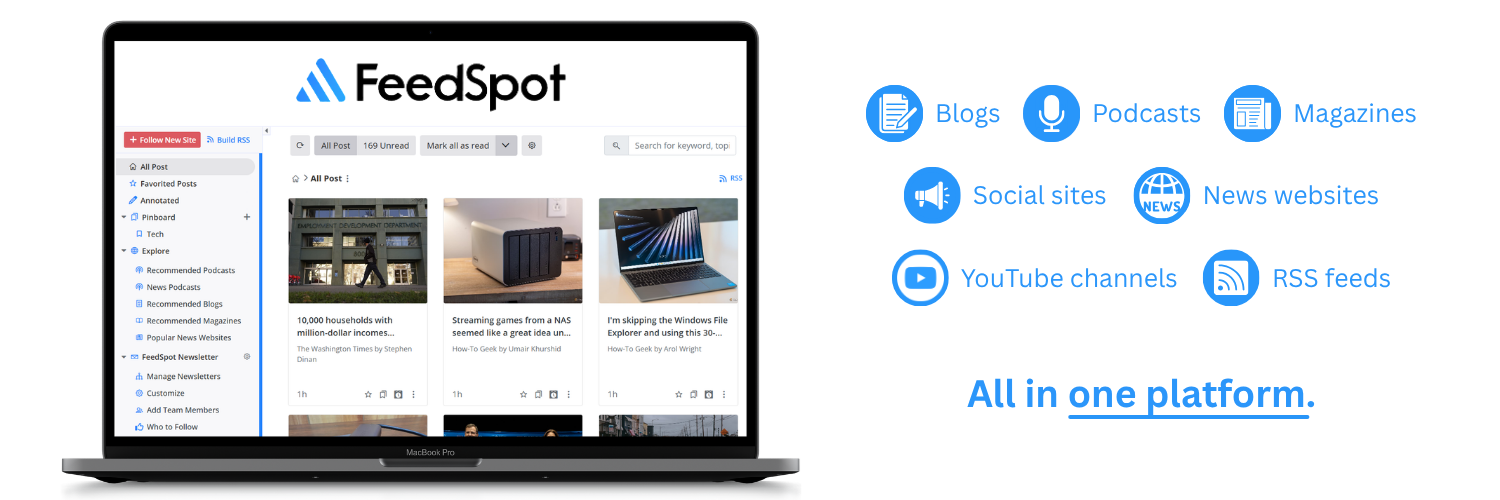
The more blogs, sites and podcasts you follow, the easier it is to lose track of them. FeedSpot Reader keeps everything you follow in a single feed instead. Need not worry about it turning into a big pile either, because you can organize everything into folders.
Getting the most from FeedSpot Reader comes down to a few steps: follow the sources you care about, organize them, then decide how you’d like to read, save and share what you find. Read this FeedSpot blog through once, then keep it handy while you’re exploring FeedSpot.
Table of Contents

1. Follow Your First Sources
2. Discover Sources in Explore
3. Import and Export With OPML
4. Reading Views
5. Text Size and Fonts
6. Podcasts and Text-to-Speech
7. Folders and Source Health
8. Favorites, Pinboards and Notes
9. Sharing and Scheduling
10. Personalize Sharing and Images
11. FeedSpot Newsletter
12. Email & Notifications
13. FeedSpot App for iOS and Android
14. RSS Tools and Brand Monitoring
15. FeedSpot Pricing and Plans
16. FeedSpot Reader FAQs
1. Follow Your First Sources
You can bring together everything you like to read and listen to in one feed: blogs, podcasts, news sites, magazines and YouTube channels. The Explore tab is sorted by type, so it’s easier to find content across different mediums. You can also sort things into your own customized folders as you go, to keep your feed organized.
Narrow search results by source type
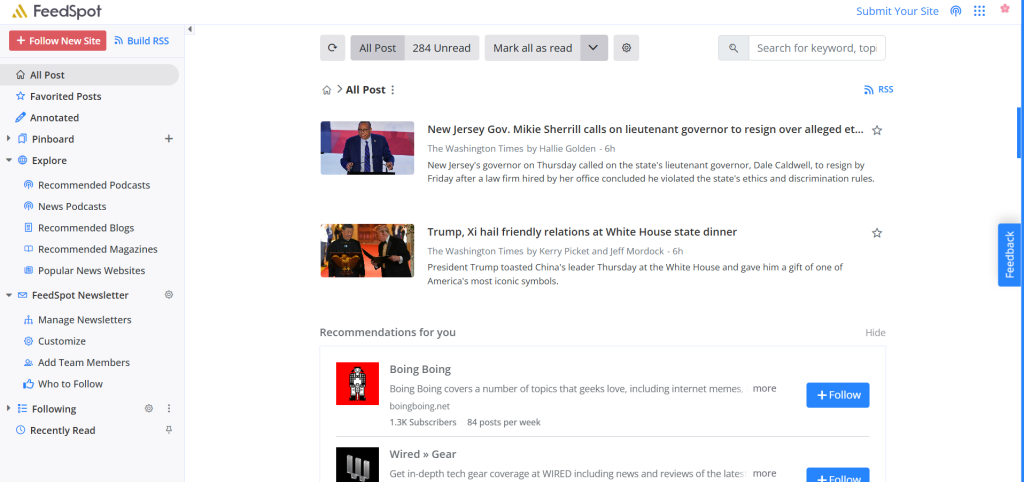
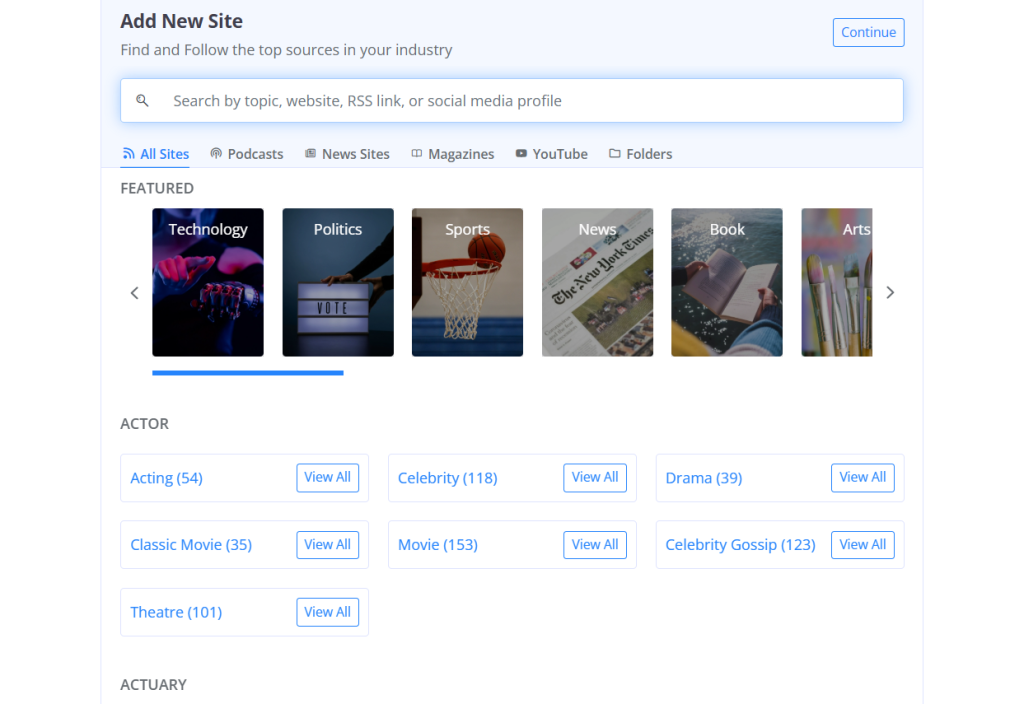
At the top of the sidebar on the left, click + Follow New Site to search for a topic, website, RSS link, or social media profile. The results are split into tabs:
- All Sites shows featured lists as well as alphabetically arranged niches in folders.
- Podcasts, News Sites, Magazines and YouTube each show only their own kind.
For example, search “photography” and open the Podcasts tab to see only photography podcasts, or stay on the all sites tab to see photography content from all mediums.
Check subscribers and posts per week before you follow
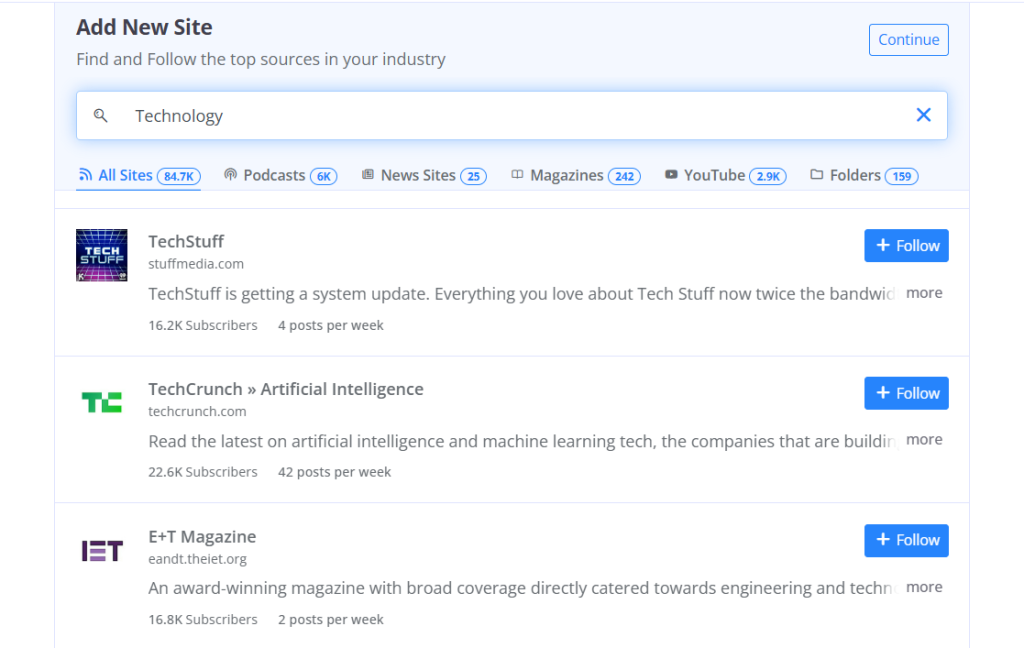
You’ll see two numbers next to each result: how many people already follow that source, and how often it posts. A source posting forty times a week can fill your feed faster than another source that posts twice a week. This is useful to consider when you’re choosing between two sources that cover the same topic, and the correct choice depends on your preferences. For example, you might prefer a regularly updating blog for breaking news, while preferring slower updates for a hobby blog.
Open Folders when a topic is new to you
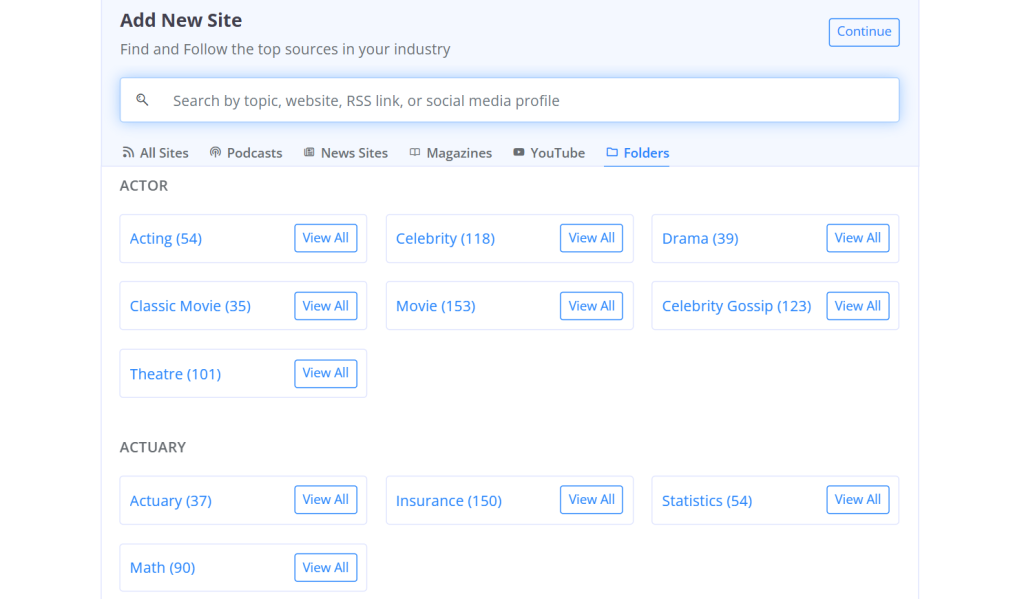
If a topic is new to you, open the Folders tab or scroll below the Featured row on the All Sites tab. You’ll see ready-made topic folders grouped under professions and interests, listed alphabetically: such as Actor, Actuary, Accountant, Aerospace Engineer, and so on.
Each of them shows how many sources it covers and a View All button. This is a faster way to build out a new topic than searching for sources one at a time.
Choose a folder as you follow each source
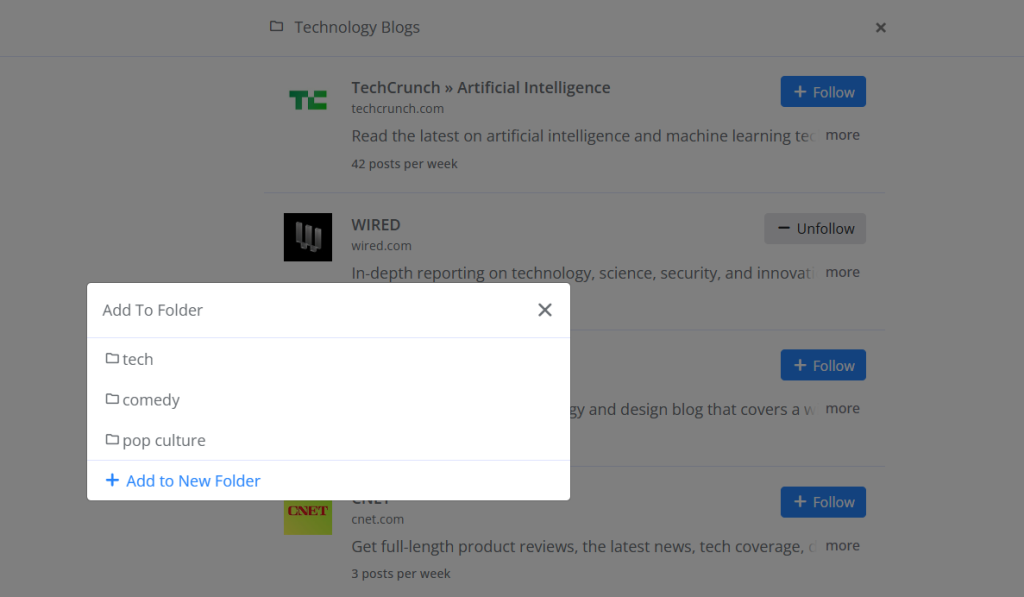
Every time you follow a source, you’ll be asked which folder to put it in. That folder then appears under Following in the sidebar. A good starting point is 5-10 sources you already check regularly, like your favorite blogs or daily podcasts. You can add more any time.
Manage your account from Settings
Clicking your profile icon, then Account Settings, lets you control the following:
- FeedSpot Newsletter: on/off, manage, customize and add team members
- Edit Profile and Set Password: your details and password
- Appearance: text size and article font
- Apps: links to App Store and Google Play Store, to download FeedSpot on mobile
- OPML: importing and exporting your sources
- Email & Notifications: digest, feature-update and tips emails
- Billing: payment plan, status
- Personalize: sharing buttons and sharing settings
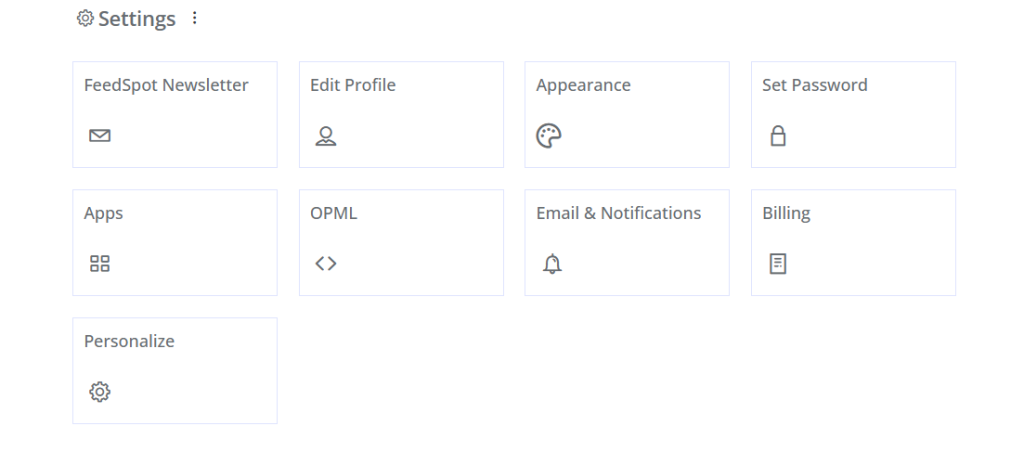
Want to know these in detail? Keep reading the next sections.
2. Discover Sources in Explore
Search works best when you know what you’re after. If you don’t, that’s alright, because Explore works best when you’d rather browse.
Open the Explore dropdown in the sidebar to find 5 lists: Recommended Podcasts, News Podcasts, Recommended Blogs, Recommended Magazines and Popular News Websites. Each list is split into topic rows.
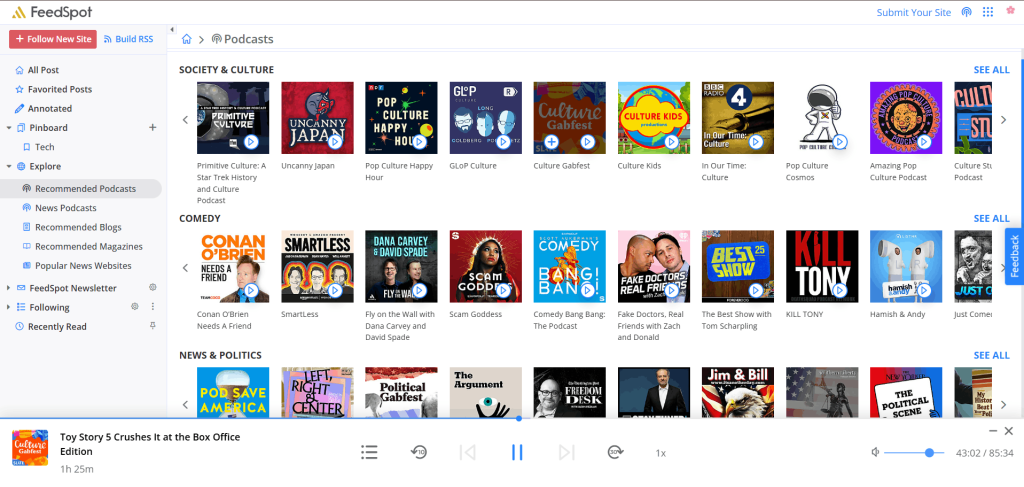
- Recommended Podcasts has rows for Comedy, Society & Culture, News & Politics and Education. There’s Play and Follow buttons, and clicking a podcast will show you a description as well as the list of episodes. Scrolling down will bring you to 35+ categories.
- News Podcasts works similarly, with rows for New York Times, CNN, WSJ, etc.
- Recommended Blogs has rows for Tech, Health, Fitness and Business. Every blog shows a cover image and a + button, and clicking its name opens a panel on the right with a short description, a Follow button, and a list of articles. If you scroll down, you’ll find 72+ categories.
- Recommended Magazines has Political, Economics, Technology,and Health rows, with 60+ further categories.
- Popular News Websites will give you news websites from the US, Germany, Canada, UK, and 44+ countries.
You can focus on one type of source at a time, for example adding all your podcasts today and coming back for blogs another day.
3. Import and Export With OPML
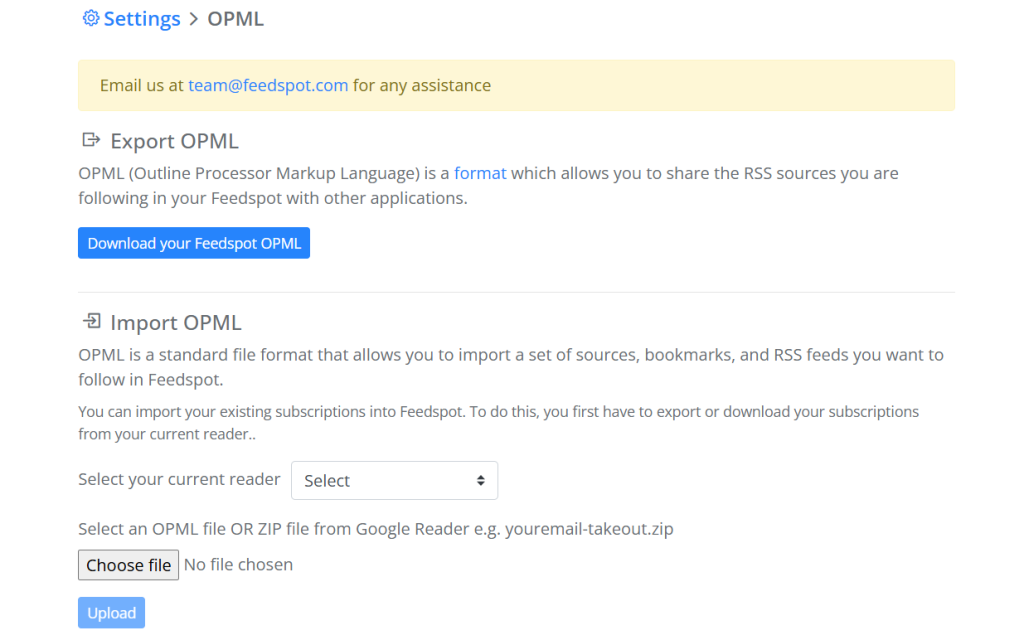
Switching to FeedSpot Reader from another RSS reader? You can move your sources from your previous reader into FeedSpot Reader without having to add them one by one.
FeedSpot Reader supports OPML files with up to 1,000 sources, so switching over takes a few clicks instead of a long, manual process.
Move sources between readers with OPML
OPML, short for Outline Processor Markup Language, is the standard file format RSS readers use to save and share sources. Most content readers can export one, which is why it’s the usual way to move between them. The file usually keeps your sources and the folders they were sorted into.
Import your file from Account Settings > OPML
Open Account Settings > OPML, and under Import OPML, choose your current reader from the dropdown. You can choose from Newsblur, The Old Reader, Feedly, Inoreader, and Bloglovin.
Click Choose file and pick your OPML or ZIP file (a Google Reader export, for example, comes as a ZIP like youremail-takeout.zip), then click Upload.
Export a backup whenever you like
The same page has an Export OPML section. Click Download your FeedSpot OPML to save everything you follow as a file. You can use this as a backup, or to share the RSS sources you are following in Feedspot with other applications.
4. Reading Views
Once you’re following a few sources, you’ll spend most of your time in the All Post tab. You can switch between four reading views to match how much detail you want.
Read everything in All Post
All Post, at the top of the sidebar, is where everything you follow comes together. Each post shows a thumbnail, headline, source, author and how long ago it was published. Hovering over a post in List or Magazine view reveals a Schedule button (more about scheduling in Section 13). Open any post and arrows on either side let you move to the next or previous one without closing it.
Across the top of the feed, you’ll find: a refresh button, the unread count, Mark all as read button, a gear icon for view and sort options, and a search box.
Clicking the dropdown on Mark all as read gives you these options: Everything, Older than one day, Older than two days, Older than three days, Older than a week, Older than 2 weeks. So, for example, you can clear everything from last week while still preserving recent posts as unread.
Switch between four views
Click the gear icon next to Mark all as read to switch between four views, and sort the feed newest or oldest first from the same menu.
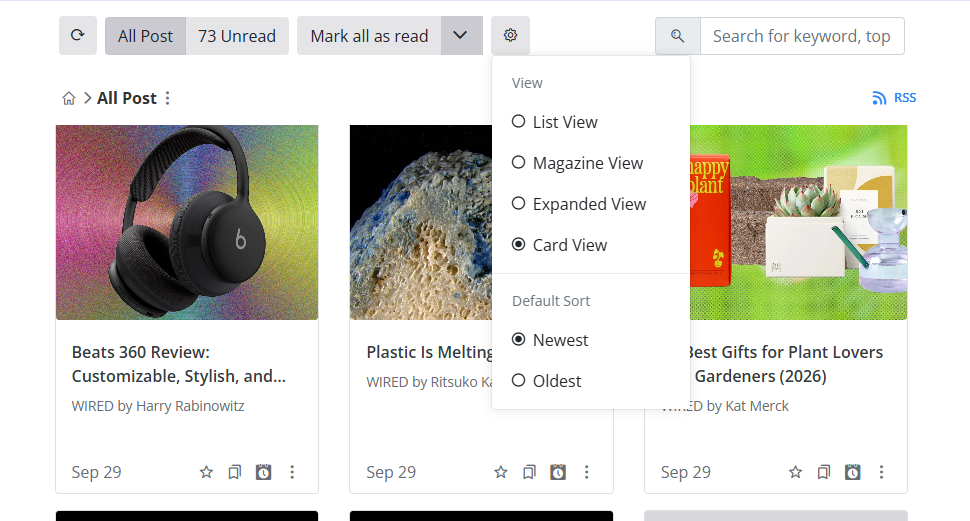
| View | What you see | Best for |
| List | A compact row per post: headline, source, time and a short excerpt | Clearing a busy feed fast |
| Magazine | Thumbnails with headlines and excerpts | Everyday reading |
| Expanded | Larger images and longer excerpts | Deciding what deserves a full read |
| Card | A grid of image-first cards | Skimming visually |
A simple routine: clear a busy feed in List view, then switch to Magazine to read properly.
Find what you opened in Recently Read
Below Following, Recently Read tab keeps a list of what you’ve opened lately, so if something pulls you away mid-article, getting back to it takes just a click.
5. Text Size and Fonts
Under Account Settings > Appearance, you can change:
- Text size: Small, Medium (default), Large or Extra Large
- Font: 5 free options – Open Sans (default), Merriweather, Sans Serif, Noto Sans and OpenDyslexic (designed with dyslexia in mind)
5 more fonts on the Business plan – ITC Charter, Amasis, Ysobel, Iowan and Mundo Sans
6. Podcasts and Text-to-Speech
You can follow podcasts the same way as any other source, and listen to episodes without leaving FeedSpot Reader.
Follow a podcast the same way as any other source
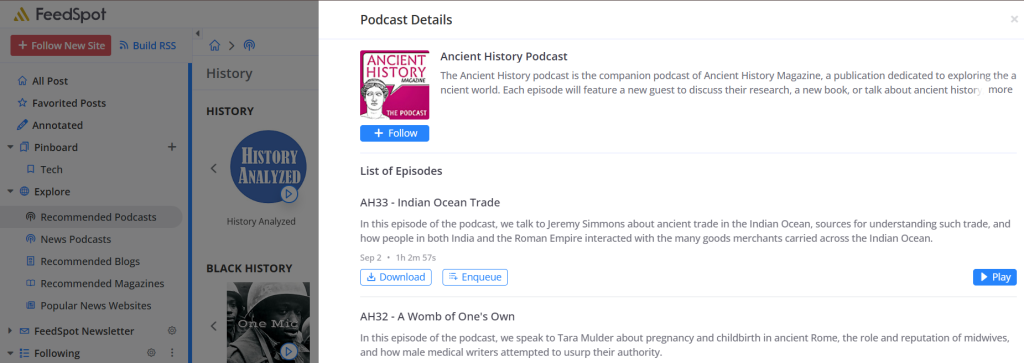
Search for a show by name in + Follow New Site, or browse Explore’s podcast lists, where every cover carries a play icon so you can sample an episode first. Click a show’s cover and choose Follow, or hover over it and click +, then pick a folder. From there, FeedSpot Podcasts appear alongside your articles in the All Post feed.
Queue episodes in the playlist
Open an episode and you’ll see Play, Enqueue and Download. Enqueue adds it to your playlist without starting it, so you can line up several episodes and play, pause, download or delete them later, with Repeat (none, all or current) and Shuffle options.
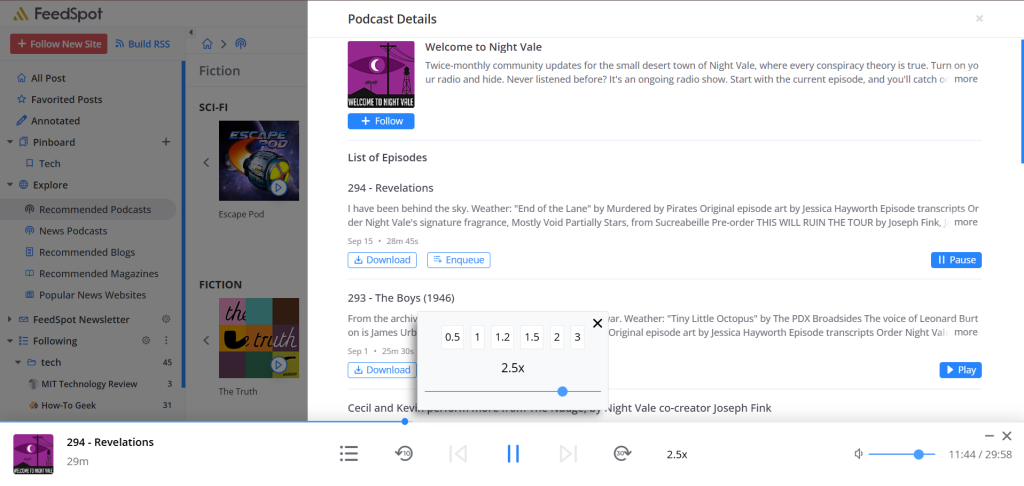
Once something’s playing, a bar at the bottom of the screen shows the playlist icon, a volume slider, and skip back 10 seconds or forward 30. You can drag the playback speed anywhere from 0.5x to 3x, with quick presets at 0.5, 1, 1.2, 1.5, 2 and 3. It keeps playing in the background while you read, and you can minimize it or reopen it from the podcast icon at the top right.
Listen to any article with text-to-speech
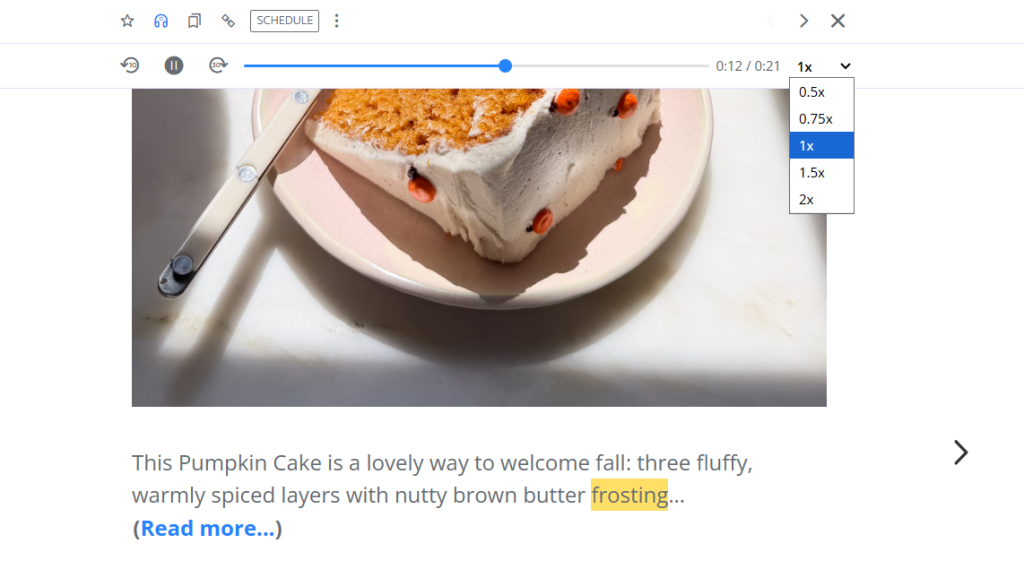
Click the headphones icon on any article to listen to it, with each phrase highlighted as it plays. There’s buttons for play, pause, skip back 10 seconds or forward 30, and playback speed controls in the same player.
7. Folders and Source Health
You can keep your feed tidy by sorting sources into folders, and using a few filters to clean things up.
Group sources into folders
The three-dot menu icons beside Following opens folder settings: Create New Folder, a toggle between Show All and Show Updated, and sorting from A to Z, Z to A, or Default, which lets you drag folders and sources into whatever order suits you. Saving a source (a blog, a podcast, etc.) to a folder moves it into the respective folder under the Following tab.
Open a folder’s three-dot menu for more options
The three dots beside an individual folder open a short menu: Change Folder, Rename Site, Delete Site, Mark All as Read, Embed and RSS.
Filter sources by activity in Manage Newsletters
Open Manage Newsletters from the sidebar (or from Account Settings > FeedSpot Newsletter), and a dropdown there lets you filter your sources by activity:
| Filter | It shows | Use it to |
| Any Activity | Every source | Review the whole list |
| 100+ more articles a week | The busiest sources | Spot ones you rarely open |
| Fewer than 100 articles a week | Moderate and quiet sources | Separate everyday reads from your busiest |
| Inactive for 3+ months | No new posts in three months | Unfollow blogs that have gone quiet |
| Unreachable | Sources whose feed has gone offline or changed | Remove them, or rebuild them with RSS Builder |
Clean up your sources every few months
Download an OPML backup first, just in case. Then unfollow anything Inactive, remove what’s Unreachable or rebuild it with RSS Builder, and check the “100+ articles a week” filter for sources you never open.
8. Favorites, Pinboards and Notes
You can save articles for later in a few ways: star them, add them to a pinboard, or take notes on them, so nothing you read gets lost.
Star an article to save it for later
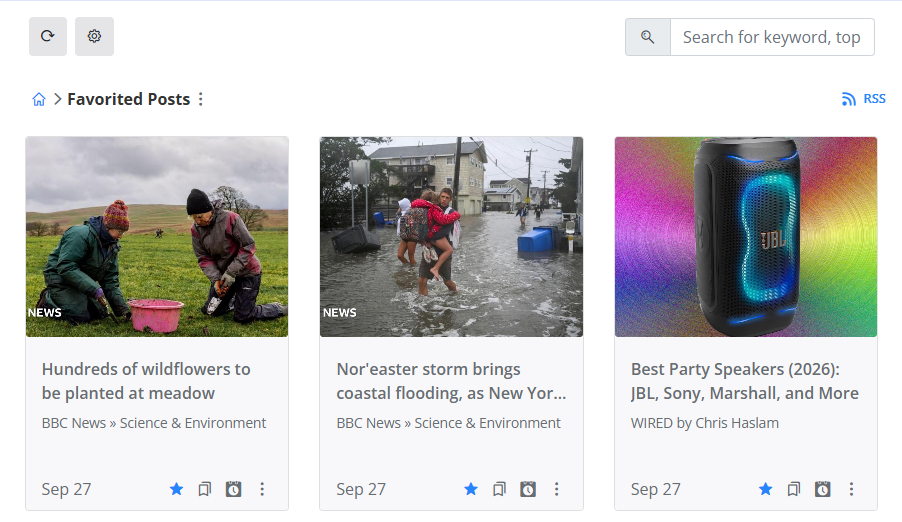
Click the star on any post to save it to Favorited Posts near the top of the sidebar. This is a quick way to flag something before deciding if you want to save it to a pinboard too.
Save articles to a pinboard
Click the + beside Pinboard to create one and give it a name, Client Research, say, or anything specific enough to find later. Click the pinboard icon on any article to save it there. The advantage of saving a post to a pinboard rather than simply starring it, is that you’ll be able to save posts in specific boards.
Add notes and highlights on the Business plan
On the Business plan, open an article and add a note in the box under the headline, or select text and choose Highlight. Everything you annotate is saved under Annotated in the sidebar, so you can find your notes again later.
9. Sharing and Scheduling
You can share or schedule an article without leaving it. Open any article and look at the panel. You’ll find the Schedule button there, along with 16 sharing destinations under the three dots.
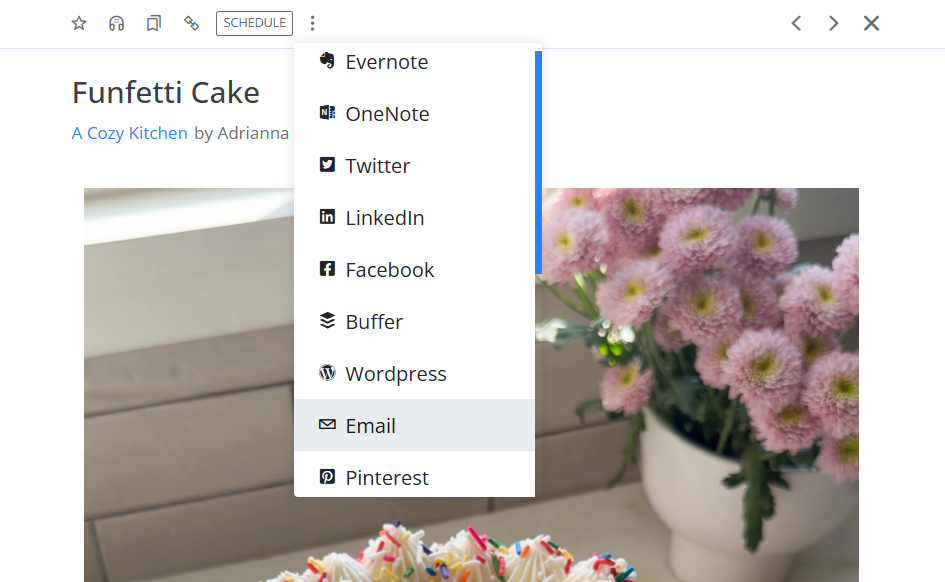
Choose from sixteen sharing destinations
| Group | Destinations |
| Social | Twitter, LinkedIn, Facebook, Pinterest, Reddit, Tumblr, Mastodon |
| Save for later | Evernote, OneNote, Instapaper, Diigo |
| Publish and queue | WordPress, Blogger, Buffer |
| Other | Email, Custom Sharing |
Queue posts with the Scheduler
On the Business plan, you can connect up to 10 social accounts, Facebook Pages, Twitter profiles, or LinkedIn profiles and pages, to the Scheduler. Use the Schedule button on any article to queue it from the Reader.
10. Personalized Sharing
Under Account Settings > Personalize, here’s what you can change:
| Setting | What you can do |
| Share to WordPress URL | Send articles to your WordPress site (needs Press This feature enabled there) |
| Share on Mastodon | Enter your server, for example mastodon.social |
| Email Provider | Choose Gmail or your native mail client |
| Pin or Save Images | Select from a toolbar on images for quick saving to Pinterest, OneNote and Evernote |
| Twitter Postfix | Get a message appended to every tweet you send from FeedSpot |
| Custom Sharing | Define a URL, using {url} and {title} as placeholders |
| Sharing Buttons | Choose which destinations appear below each article (3 by default), in what order, and how many |
11. FeedSpot Newsletter
You can get your feed delivered to your inbox instead of opening FeedSpot every day, on whatever schedule works for you. You can also use the same newsletter to share what you follow with your team.
Turn the newsletter on or off
Open Account Settings > FeedSpot Newsletter and choose “Receive newsletter emails” or “Unsubscribe and stop newsletter emails” at the top. Below that are three tiles: Manage Newsletters, Customize and Add Team Members.
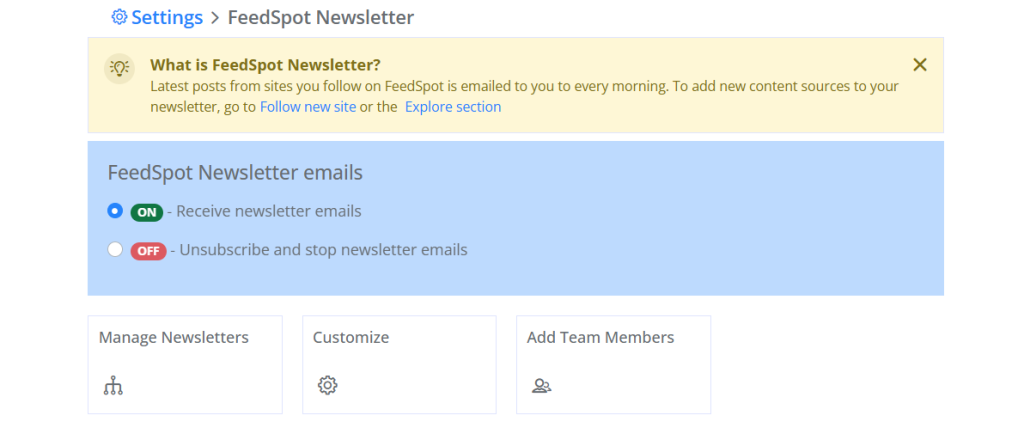
Another way of navigating to the same settings is by clicking the FeedSpot Newsletter dropdown on the sidebar.
Open Manage Newsletters to control which sources get emailed
Open Manage Newsletters to see every source and folder with its posts per week, last post date, and an Email Alert switch. You can filter the list manually or by activity level (Any Activity, 100+ more articles a week, Fewer than 100 articles a week, Inactive for 3+ months, Unreachable).
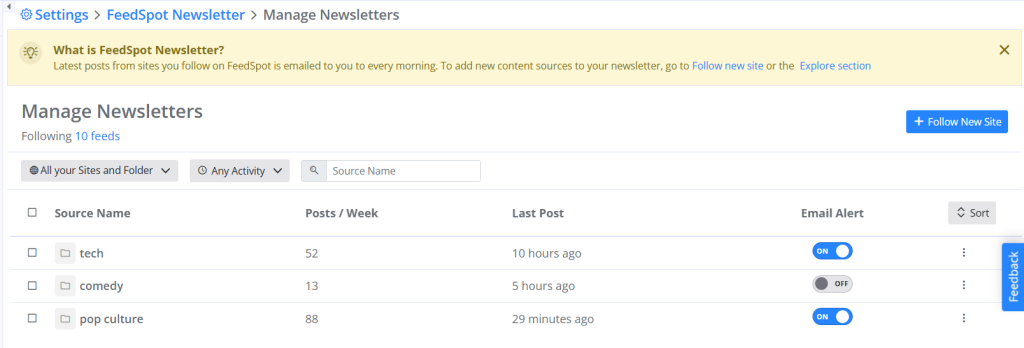
A good approach is switching off alerts for a noisy, frequently-updating folder while keeping alerts on for the sources you can’t miss.
Customize how often and what’s included
Click Customize, and go to Frequency of Email, then pick how often you want the newsletter delivered. Twice a week is the default.
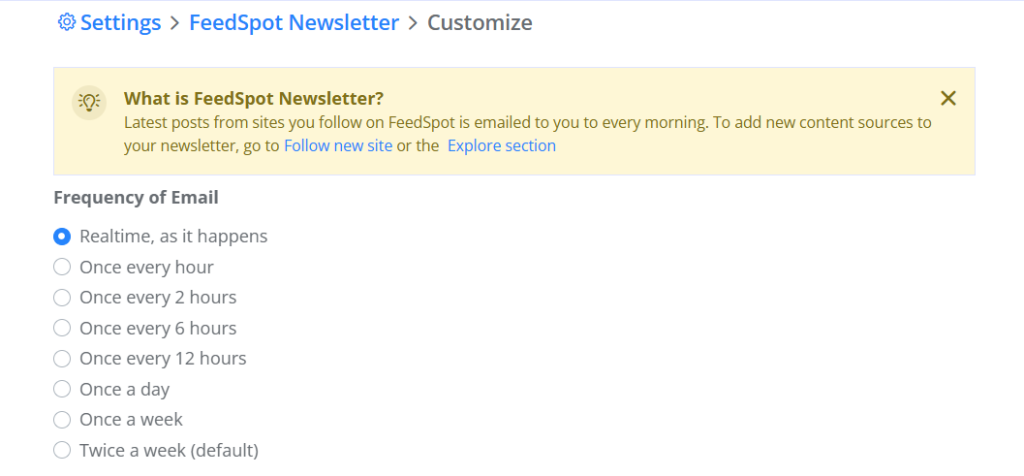
This table shows what each option is good for:
| Frequency | Good for |
| Realtime | Breaking news or a competitor’s site |
| Once every hour | A fast-moving topic during the workday |
| Once every 2 hours | A busy topic without every update at once |
| Once every 6 hours | A few updates spread across the day |
| Once every 12 hours | A morning and an evening catch-up |
| Once a day | One roundup that fits your routine |
| Once a week | Slower topics, or a weekend catch-up |
| Twice a week (default) | A long list of sources kept manageable |
Delivery time is 7 AM by default, and is customizable. It only applies to the once-a-day and once-a-week options.
The Newsletter format lets you preview the email, and ticking Disable Related Content keeps it to just the sites you’ve added, instead of including similar articles from other sources.
Share your newsletter with up to 20 team members
If you’re on the Business plan, go to Add Team Members to add names and emails for up to 20 team members.
They’ll receive a copy of your newsletter where each post links to the original site; but won’t be able to login or make any changes to your FeedSpot account, or any modifications to the newsletter.
12. Email & Notifications
Open Account Settings > Email & Notifications to unsubscribe from emails separate from the FeedSpot Newsletter itself. They are Daily/Weekly digest emails, Premium feature update emails, and Tips emails.
Each has its own checkbox, so you can turn off one without affecting the others.
13. FeedSpot App for iOS and Android
You can download the FeedSpot app on your phone to use it on the go.
FeedSpot Reader is on the App Store for iPhone and iPad, and on Google Play for Android.
Account Settings > Apps links to both. Sign in with your account and your sources will carry over automatically.
14. RSS Tools and Brand Monitoring
Merge feeds into one with RSS Combiner
Look next to the breadcrumb above any feed, All Post, a folder, a pinboard, Favorited Posts, or one particular source, and you’ll find an RSS button. Clicking it opens the RSS Combiner.
Feedspot’s RSS Combiner takes multiple RSS feeds from different sources and creates a new combined version of all those feeds. It updates automatically. Use Create New Combined RSS to start one and My Combined RSS Feeds to find the ones you’ve made.
An example use case: this is useful for gathering competitor blogs into one stream for a widget or another app.
Build a feed for sites without RSS
RSS Builder turns any webpage into an RSS feed. This is useful because many websites no longer provide RSS feeds.
Paste the webpage URL and click Generate RSS, pick the section you want to track, then click Save RSS and give it a name. After that, FeedSpot crawls the website to extract the relevant content, and the feed appears in Generated Feeds and in your Reader, updating as new content is published.
It won’t work on JavaScript-heavy sites, pages without direct links, sites that block bots, or in Safari, which restricts the scripts it needs. For social profiles, use RSS Generator instead, which builds feeds from Instagram, X, LinkedIn, Facebook, and other profile pages.
Show your feed on your site with RSS Widgets
With RSS Widgets, you can embed and display the latest updates from your favorite sources (like blogs, podcasts, Youtube channels, RSS feeds, etc.) on your website. Click Create New Widget, then enter RSS feed URL, customize settings, and you’re done.
Track mentions with Brand Monitoring
Brand Monitoring is a saved search that runs automatically, so you don’t have to repeat it manually. Set it up for your brand, a competitor, a keyword or a topic, then check back to see what’s new.
You can search titles only or titles and descriptions, match all, any or an exact phrase. Advanced search supports filtering results by including or excluding title, description, custom text, author etc and over 50+ combinations, to get you the right custom result.
15. FeedSpot Pricing and Plans
FeedSpot Reader has two plans: Basic for reading on your own, and Business for teams and professionals who need more tools.
Compare prices for Basic and Business
| Plan | Region | Monthly | Yearly |
| Basic | Outside the US | $3.99 | $39.90 |
| Basic | US | $7.99 | $79.90 |
| Business | Worldwide | $9.99 | $99.90 |
Paying yearly works out to about two months free. Check out the pricing page for a detailed comparison of the plans.
Switch plans or cancel from Billing
You can manage plans from the Billing page under Account Settings. During a trial, Switch Plan changes your plan with no charge. After the trial, the same button reads Change Plan instead. Upgrading charges the price difference right away, and downgrading takes effect at your next billing period.
To cancel, use the cancel option on the same page. Cancel during the trial and you won’t be charged. Cancel after it, and you keep access until the end of the period you’ve already paid for.
Pay with Stripe or PayPal
FeedSpot accepts Visa, Mastercard, American Express, Discover and PayPal. You’re billed once a year or once a month depending on your plan, and you get an emailed receipt for every charge.
Start with a 7-day free trial
Your card isn’t charged until the trial ends. This gives you a week to follow a few sources and see which plan fits how you read. When you’re ready, start your 7-day free trial.
16. FeedSpot Reader FAQs
Does FeedSpot offer discounts for non-profits or schools?
Yes, for non-profit organizations, charities and academic institutions. Email [email protected] for details.
How many sources can I follow on FeedSpot Reader?
Up to 500 on Basic, up to 5,000 on Business.
What’s the difference between Favorited Posts, Pinboards and Annotated?
Favorited Posts is a quick star for later, Pinboards are named folders for saving articles by project or topic, and Annotated collects anything you’ve added a note or highlight to.
Does the newsletter cost extra?
No, it’s included on both plans.
Can I follow YouTube channels the same way as blogs and podcasts?
Yes, YouTube is one of the source types you can search and follow from + Follow New Site. You can watch videos inside FeedSpot Reader itself, too.
Keep Reading
Come back to this FeedSpot blog whenever you need help with a setting or feature.
For a shorter look at what FeedSpot is, read the welcome guide.
If you’re comparing RSS readers, see how FeedSpot’s approach differs from others.