
Think about your morning routine. You probably check five different news apps, scroll through three social media feeds, visit a dozen bookmarks, and still feel like you’re missing something important. Now imagine opening one single interface where every piece of content you care about is waiting for you, organized exactly how you want it, ready to read, share, or schedule across all your platforms in seconds.
That’s FeedSpot for you. Let us walk you through everything FeedSpot has to offer. By the end of this guide, you’ll understand why professionals who discover FeedSpot often can’t believe they wasted years juggling multiple tools.
Table of Contents
- 1. Getting Started
- 2. Reading & Navigation
- 3. Favourites, Annotations & Pinboards
- 4. Podcasts & Audio Content
- 5. Exploring and Discovering Content
- 6. Email Digest & Team Collaboration
- 7. Managing Folders and Source Organization
- 8. Content Distribution: Sharing & Scheduling
- 9. OPML Migration
- 10. Advanced Personalization Features
- 11. Mobile Apps
- 12. The Value Equation
1. Getting Started
When you first log into FeedSpot, you’ll see a clean interface with a sidebar on the left. This is your new command centre for everything you read, watch, and listen to.
Following Your First Sources
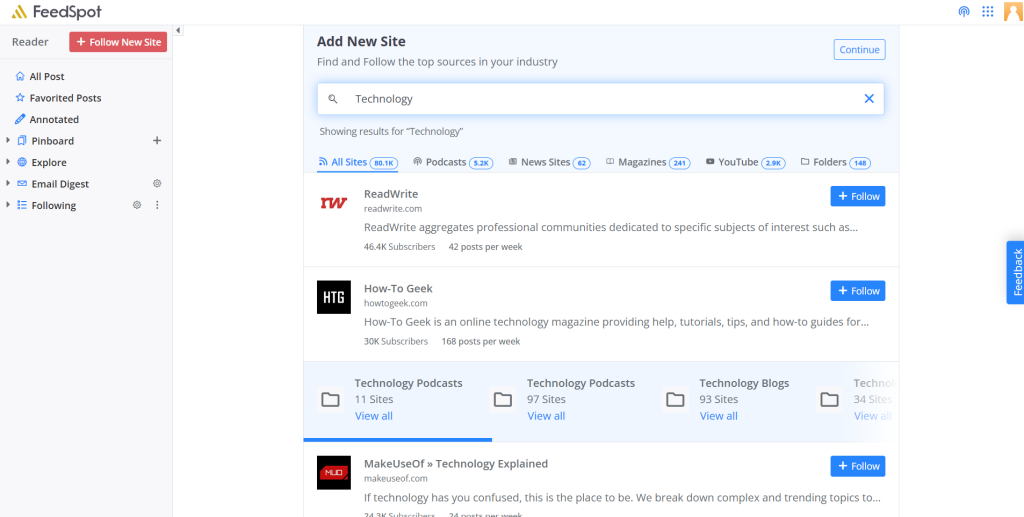
Click the red “+ Follow New Site ” button at the top left. You’ll see several tabs:
- All Sites– A comprehensive mix of blogs, magazines, podcasts, and other content sources, all sorted by subscriber count. This gives you the broadest view of what’s available across all content types.
- Podcasts– Filters results to show only podcast feeds if you’re specifically looking for audio content.
- News Sites– Narrows your view to news-focused publications.
- Magazines– Shows magazine-style publications and periodicals.
- YouTube– Displays YouTube channels you can follow.
- Folders– Recommended sources grouped in categories.
Start by following 10-15 sources you already know you need by adding them into custom folders that will appear under “Following”
Then try searching for “Technology“ to see what’s available in FeedSpot’s built-in directories. You’ll see sources like: ReadWrite (46.4K subscribers, 42 posts per week), How-To Geek (30K subscribers, 168 posts per week), etc. You’ll also be suggested folders that have sources grouped under these categories.
Notice those “posts per week” numbers? That’s your first indication of what you’re getting into. Following The Diplomat means you can expect 84 posts per week. Nikkei Asian publishes 168 posts weekly. This vital information is only made accessible by FeedSpot’s organizational tools.
2. Reading & Navigation
The “All Post” Feed
Once you’ve followed some sources, click “All Post” in your left sidebar. This is your main feed, your personal newswire where everything from all your followed sources appears.
Every article from every source you follow, in one continuous, readable feed. No more jumping between websites. No more browser tabs. No more wondering if you missed something.
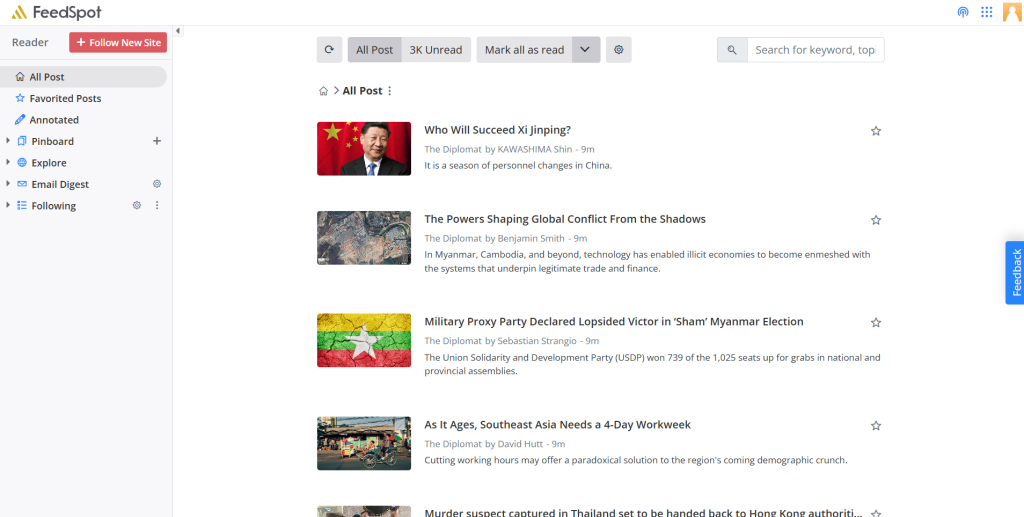
You’ll see:
- Article thumbnails
- Headlines
- Source and author attribution
- Publication timestamps
- Brief excerpts (2-3 sentences)
- Action buttons (Add to favourite, add to pinboard, copy link, schedule) that appear both when you click into an article and on hover over individual articles in your feed (Note: hover functionality works in Magazine and List view modes only)
At the top, you’ll see “3K Unread“. It’s designed to help you efficiently identify what deserves your attention. Right beside that is the “Mark all as read” button which gives you multiple options within its drop down menu.
The Four View Modes
Here’s where FeedSpot shows its sophistication. Click the settings icon next to “Mark all as read” and you’ll see view options that most content readers don’t offer.
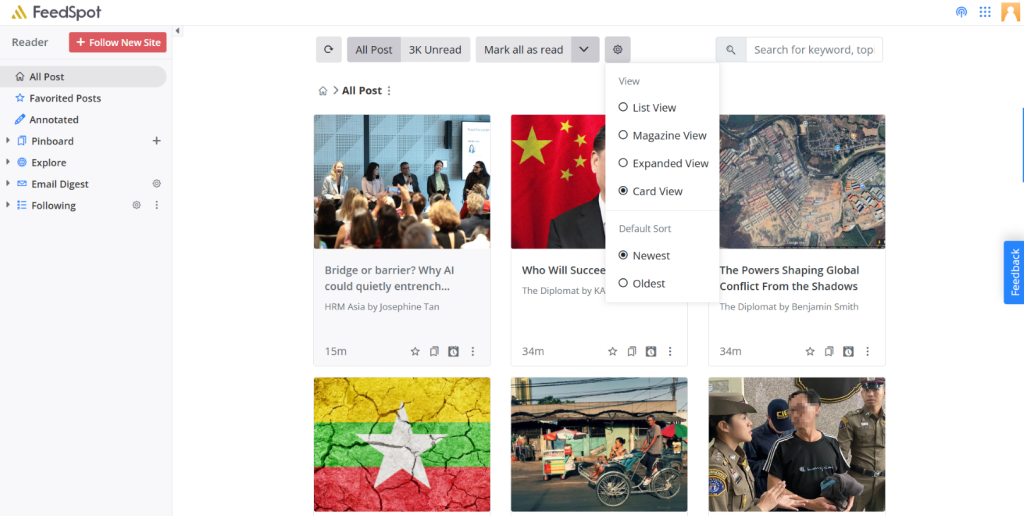
(a) List View (High-Volume Processing)
Compacts everything into rows similar to your email inbox. Just headline, source, time, and brief excerpt.
(b) Magazine View (Your Daily Default)
This is what you’re looking at right now. Balanced information density with visual appeal. You get enough context to decide what’s worth reading without overwhelming detail.
(c) Expanded View (Deep Reading Mode)
Increases image sizes and excerpt length significantly.
(d) Card View (Visual Grid)
Displays articles in a three-column grid with smaller images and minimal text, the most visual-first option.
Mastering all four view modes will make you process content 3-4x faster than you do now. After 20 posts, it prompts you with “Mark all above as read” to help you process content in batches.
3. Favourites, Annotations & Pinboards
As you browse your feed, you need ways to capture, organize, and remember what matters. FeedSpot gives you three interconnected systems that work together seamlessly.
Favoriting
See something that looks important but don’t have time to read it right now? Click the star icon. That article goes to your “Favorited Posts” section.
Annotations
Reading without capturing insights is like attending a conference without taking notes. You consume information, but you don’t retain it. Annotations change this dynamic completely.
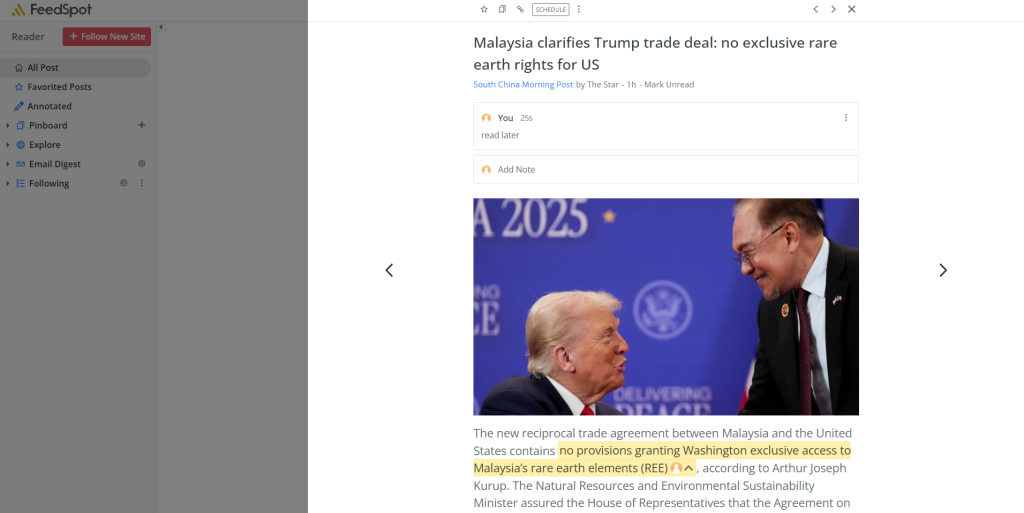
Click on any article to open it. At the top left, just below the headline, you’ll see “Add Note” within a text box. Here you can attach your own commentary, insights, questions, or analysis directly to that article. You can highlight too.
When you add a note to an article, that article automatically appears in your “Annotated” section in the left sidebar. Months later, when you’re trying to remember that key insight about US-Malaysia economic relations, you go to Annotated, find the article, and your notes are right there and can be viewed in the preferred viewing option.
Annotation Strategies That Work:

(a) Capture key quotes: Copy the article's most important sentence into your note. When you review later, you get the essential insight without re-reading everything.

(b) Add context: Note why this article matters to your work. "This supports the argument in Chapter 3" or "Contradicts the Bloomberg analysis from last week."

(c) Create action items: "Read again later" or "Share this with the product team."

(d) Connect ideas: "This relates to the FT article about supply chain diversification." You're building a web of connected knowledge.

(e) Record your reaction: "This seems overly optimistic given recent policy changes" or "Need to verify these statistics." Your annotations become your critical thinking trail.
Pinboards
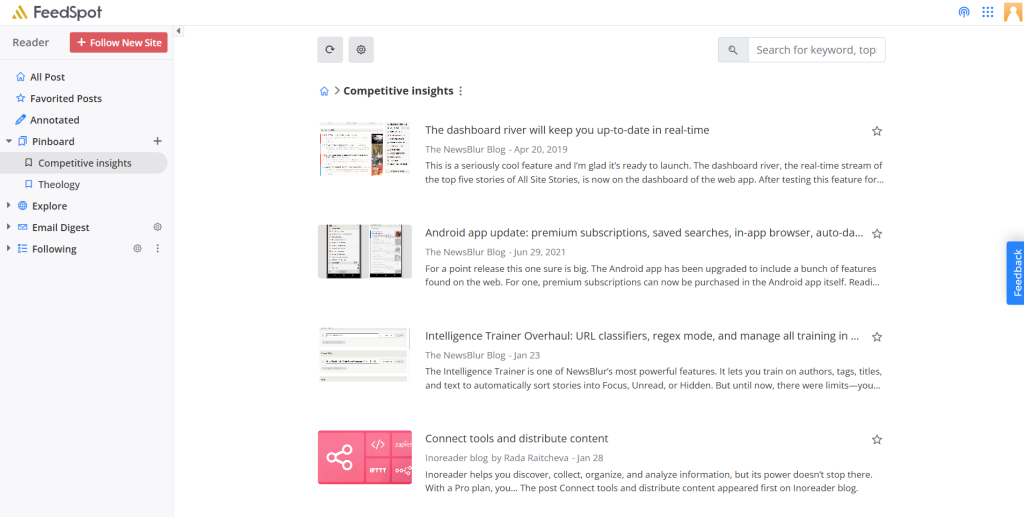
Now we get to the feature most users underutilize but power users can’t live without. Pinboards are customisable folders where you save articles for later reference. They remove the anxiety of losing important content. For users with more than five folders, a search function appears to help you quickly find the right category.
Create Your First Pinboard:
Click “Pinboard” in your left sidebar, then click the plus sign. You might name it “Theology” if you’re collecting religious content, or “Competitive Insights” if you’re monitoring your industry.
To save an article to a Pinboard, click the bookmark icon below any headline and select which Pinboard to save it to.
The Pinboard Advantage
What makes Pinboards different from bookmarks or read-it-later apps? They exist within your reading environment. You don’t save an article and then forget it. Your Pinboards are always visible in your sidebar, always accessible, always integrated with your reading workflow.
When you click on your “Theology” Pinboard, you see all saved articles in the same view modes (List, Magazine, Expanded, Card) as your main feed. You can sort newest first or oldest first. You can share directly from Pinboards. You can even export them.
How Professionals Structure Pinboards:

(a) By Project: Writing a research paper on China's role in Africa? Create a "China-Africa Research" Pinboard. Every relevant article goes there, building your source library automatically.

(b) By Content Type: Separate "Data & Statistics" from "Opinion Pieces" from "Case Studies." When you need specific types of content, you know exactly where to look.

(c) By Action Required: Create "To Read This Week," "To Share on LinkedIn," and "Reference Material" boards. This turns Pinboards into workflow tools, not just storage.

(d) By Topic: Maintain ongoing collections like "AI Developments," "Climate Policy," or "Emerging Markets." Over months, these become invaluable personal archives.
4. Podcasts & Audio Content
FeedSpot isn’t just for reading. The podcast functionality turns it into a complete audio content manager. Click “Recommended Podcasts” or “News Podcasts” in your left sidebar.
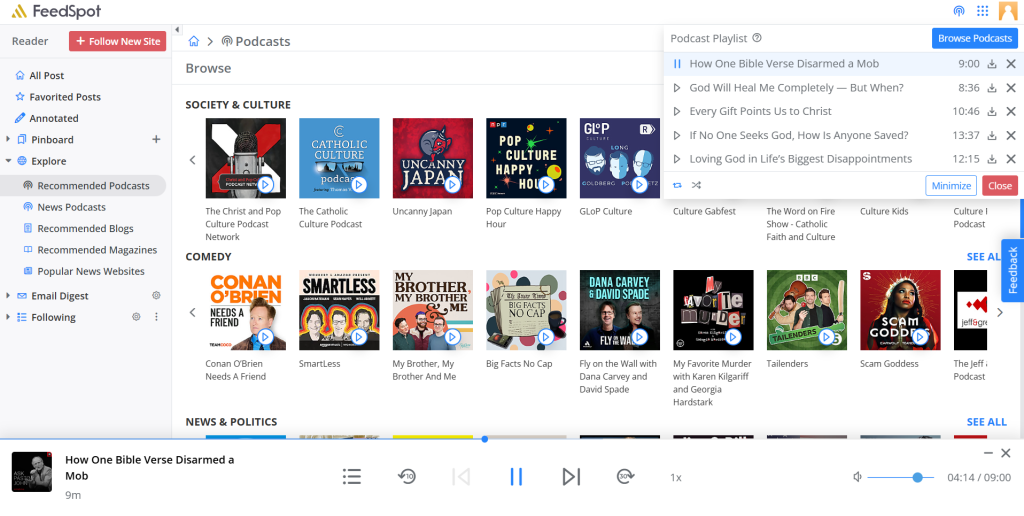
You’ll see major podcast publishers organised by categories/networks/location.
FeedSpot automatically hides inactive ones (those with no updates in the last 3 months) from these recommendation sections, ensuring you only see actively publishing shows.
Following Podcasts
Click “Follow” after clicking on any Podcast cover image or the “+” button while hovering on any podcast (remembering you’ll need to add it to a folder), and podcast episodes then appear in your main “All Post” feed alongside articles, or you can view podcasts separately.
The Podcast Playlist
Click the podcast icon at the top right corner of the interface to access “Podcast Playlist.” This dedicated view shows all your queued episodes. To add a podcast to your Playlist, click on the ‘Enqueue or Add to Playlist’ option.
Playing Podcasts
Click any episode to start playback. The player appears at the bottom showing:
- Episode artwork
- Episode title and show name
- Playback controls (15-second rewind, play/pause, 15-second forward)
- Speed control (1x, 1.5x, 2x options)
- Volume slider
- Timestamp (current position / total length)
The player stays active as you browse other content, so you can listen while reading articles.
5. Exploring and Discovering Content
The Explore section in your left sidebar helps you discover high-quality content across multiple formats:
- Recommended Podcasts
- News Podcasts
- Recommended Blogs
- Recommended Magazines
- Popular News Websites
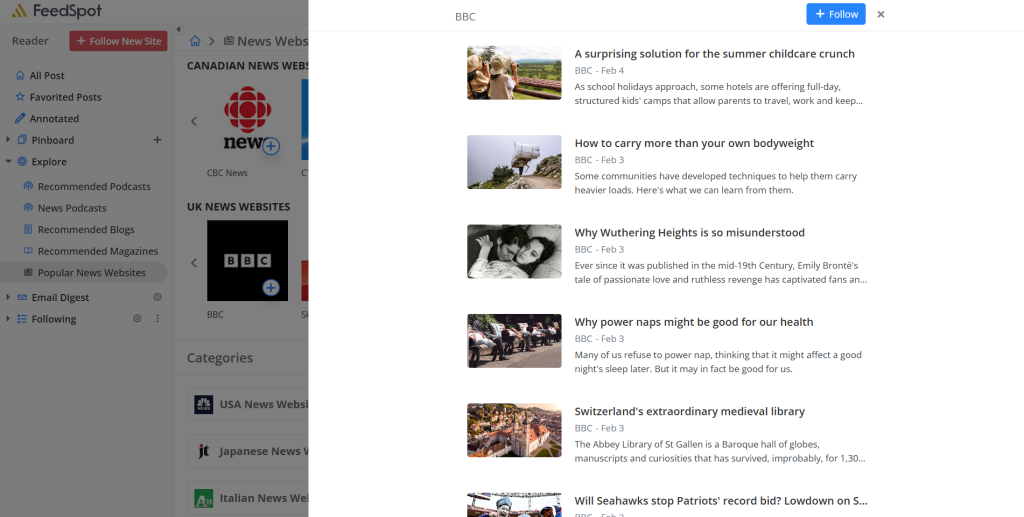
They last three follow the same visual layout as the podcast sections. Each feed is displayed with its cover image. The “+” follow icon appears upfront at the bottom right of each image, making it easier for you to follow these sources.
Click on the site name or image itself to open a right panel showing the latest articles from that source
Click “SEE ALL” at the top of any category to view a comprehensive page with all available feeds in that category
Beneath these main categories, you’ll find the general “Categories” section where folders are currently ordered in the sequence that users have been subscribing to them.
6. Email Digest & Team Collaboration
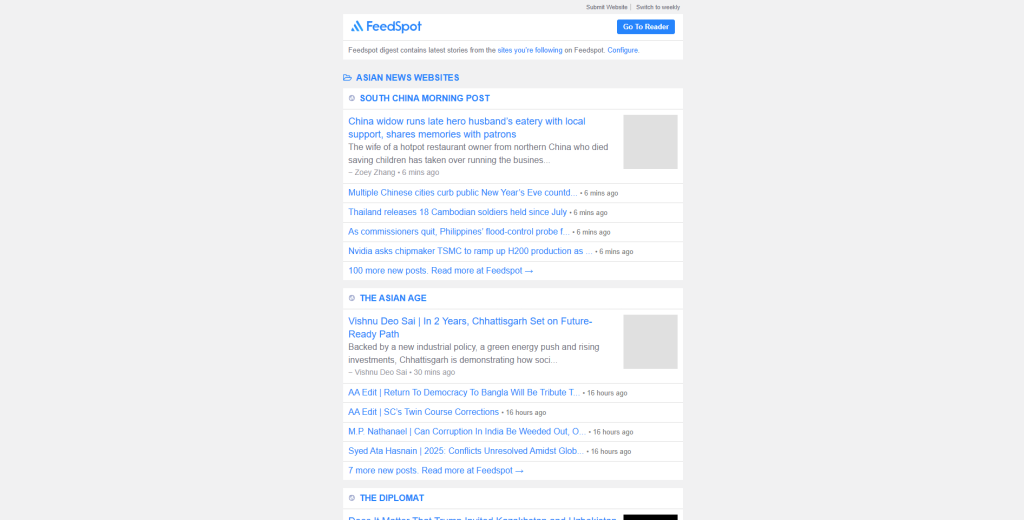
One of FeedSpot’s most valuable features is the email digest system that brings your feed directly to your inbox and allows you to share your curated content feed with your team.
Configuring Your Daily Digest
In your left sidebar, expand “Email Digest” and click “Customize” to configure your settings.
Frequency Options:
- Realtime, as it happens
- Once every hour
- Once every 2 hours
- Once every 6 hours
- Once every 12 hours
- Once a day
- Once a week
- Twice a week (default)
Daily digests work best for most professionals. You get a consolidated update every morning without overwhelming your inbox. If you follow 30+ high-volume sources, stick with daily or twice weekly to avoid digest fatigue.
Delivery Time: Set when you want your digest to arrive. The default is 7:00 AM.
Disable Related Content: By default, FeedSpot includes related articles in your digest (similar to how YouTube recommends videos). Check the box to disable this if you only want updates from your followed sources.
Adding Team Members
Click “Add Team Members” under Email Digest settings. You can add up to 10 team members who will receive a copy of your digest. This feature effectively turns your personal feed into a team intelligence tool. You curate once, and up to 10 people benefit from your curation work.
Here’s what team members experience:
- They receive your digest email with all posts linked to original sites
- They cannot log in or make changes to your FeedSpot account
- They cannot modify the digest email
- If you add or remove sources, the next digest reflects those changes
Strategic Use Cases:

(a) Executive briefings: Set up a digest of key industry sources, then share it with your entire team. Everyone stays informed from the same curated sources.

(b) Client updates: Follow sources relevant to a client's industry, then add them as team members so they see you're monitoring their space.

(c) Department alignment: A marketing team might share a digest of competitor blogs and industry news, ensuring everyone sees the same information.

(d) Research distribution: Academic researchers can share digests with co-authors, keeping everyone's reference base synchronized.
Organizing Your Sources
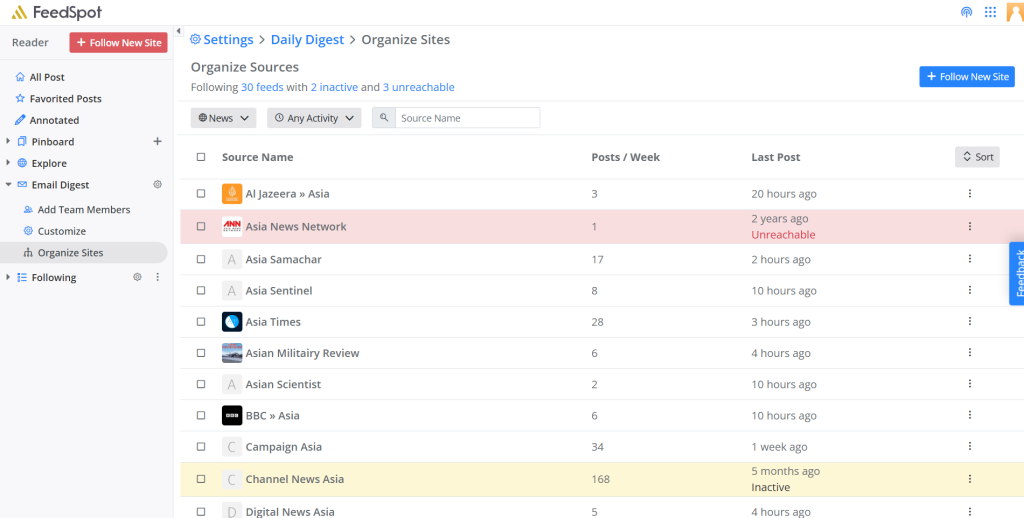
Navigate to Email Digest > Organize Sites. You’ll see a table with all your sources showing:
- Source name with icon
- Posts per week
- Last post timestamp
- Enable/Disable toggle for digest inclusion
Activity Filtering:
The dropdown menu at the top lets you filter sources by activity level:
- Any Activity
- 100+ more articles a week
- Fewer than 100 articles a week
- Inactive for 3+ months
- Unreachable
Inactive sources haven’t published in 3+ months, blogs that might be on hiatus or abandoned. Unreachable sources haven’t updated in over a year or FeedSpot can’t fetch updates anymore.
The Quarterly Clean-up Ritual:

(a) Filter for inactive sources: See which feeds haven't published recently. Unfollow abandoned blogs that clutter your feed.

(b) Filter for unreachable sources: Remove sources FeedSpot can't access anymore.

(c) Review high-volume sources: Sort by posts per week. If a source publishes 100+ times weekly but you never read it, consider removing it or disabling it from your digest.

(d) Check last post dates: If a usually-active source went silent, you'll spot it here. Maybe they moved to a new domain or changed their RSS feed.
7. Managing Folders and Source Organization
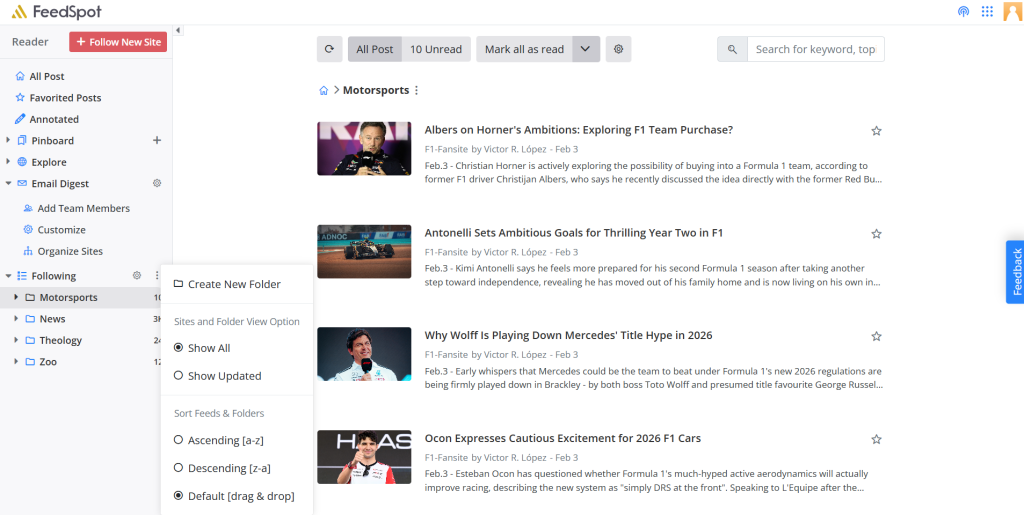
In your left sidebar under “Following,” you’ll see your sources organized into folders with number of unread posts mentioned. Click the three dots next to “Following” to access powerful folder management options starting with “Create New Folder“: Organize sources into custom categories like “Motorsports,” “News,” or “Theology”
Sites and Folder View Options
Control how your sources appear in the sidebar:
- Show All: Display all sources regardless of update status
- Show Updated: Only show sources with new content (keeps your sidebar clean)
Sort Feeds & Folders
Organize your sources and folders by:
- Ascending [a-z]: Alphabetical order
- Descending [z-a]: Reverse alphabetical
- Default [drag & drop]: Manual ordering. Simply drag sources up or down in your sidebar to arrange them exactly how you want
Pro tip on drag & drop: You can click and drag any source within a folder to reorder it based on priority. Put your most important sources at the top so they’re always visible. You can also drag sources between folders to reorganize your content structure on the fly.
Managing Folders
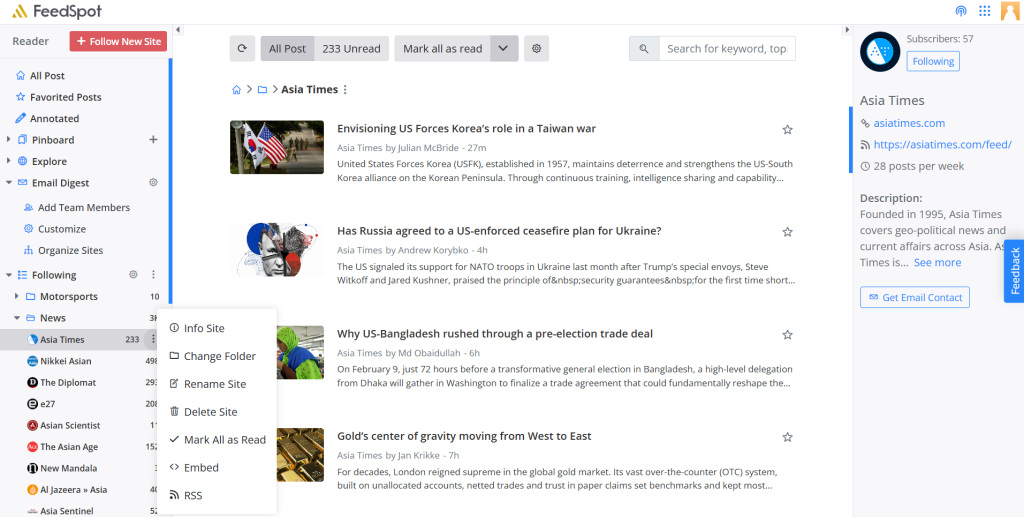
Click the three-dot menu next to any source name in a folder to see:
- Change Folder: Move a source to a different folder
- Rename Site: Customize how a source appears in your sidebar
- Delete Site: Remove a source from your feed entirely
- Mark All as Read: Clear all unread items from that folder or source
- Embed: Get embed code to display the feed on your website
- RSS: Access the RSS feed URL directly
Viewing Source Details
Click on any source name in your sidebar to see its dedicated feed page. On the right side, you’ll see a detailed information panel.
This panel shows:
- Subscriber count: How many Feedspot users follow this source (indicates popularity)
- Following status: Blue “Following” button (click to unfollow)
- Website URL: Direct link to the source’s homepage
- RSS feed URL: Direct access to the feed for technical use
- Posting frequency: Average posts per week (helps you gauge volume)
- Description: What the source covers and their editorial focus
- Get Email Contact button: Access the Media Contact Database for this publisher (this requires a separate subscription)
This information helps you evaluate whether a source deserves space in your feed. If you see a source has 1,825 subscribers and posts 84 times per week, you know it’s both popular and high-volume so plan accordingly.
8. Content Distribution: Sharing & Scheduling
This is where FeedSpot transcends being just a reader and becomes a content distribution powerhouse. The integrated sharing and scheduling tools let you go from reading to publishing across multiple platforms without ever leaving your feed.
Sharing to 16+ Platforms
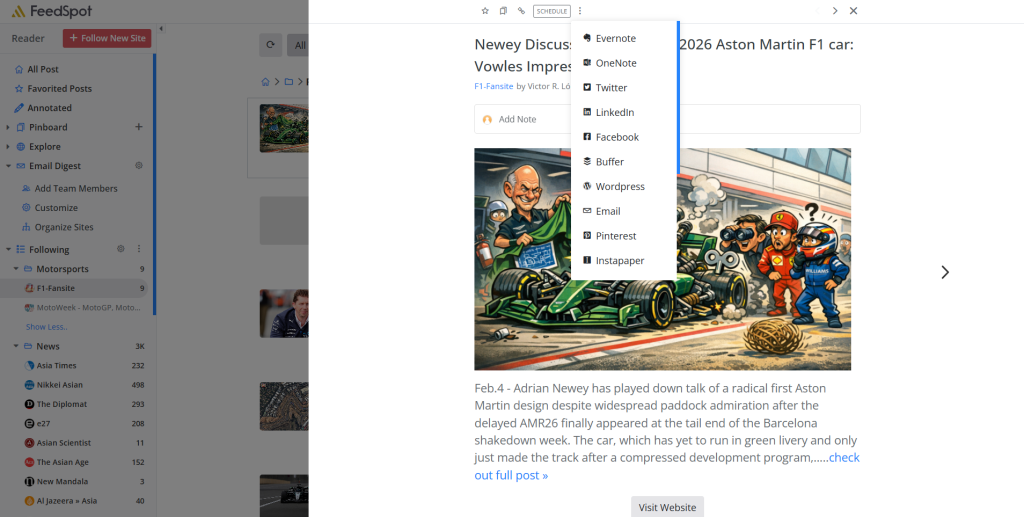
Click on any article to view it in full. At the top of the right sidebar, you’ll see a “Schedule” button and several sharing options. Click the three-dot button to see all available platforms:
You’ll see: Evernote, OneNote, Twitter, LinkedIn, Facebook, Buffer, WordPress, Email, Pinterest, Instapaper, Custom Sharing, Blogger, Reddit, Tumblr, Mastodon, Diigo That’s 16 different sharing destinations, all accessible without leaving your reading experience.
How Sharing Works
Select a platform, and FeedSpot opens a sharing dialog pre-populated with:
- The article headline
- A link to the original article
- Relevant hashtags or formatting for that platform
You customize the message before posting. For LinkedIn, add professional context. For Twitter, craft that message under 280 characters. For Facebook, add a personal anecdote.
9. OPML Migration
Over time, you’ll follow dozens of sources. FeedSpot provides powerful tools to keep them organized and makes it easy to import your existing feeds from other readers.
What is OPML?
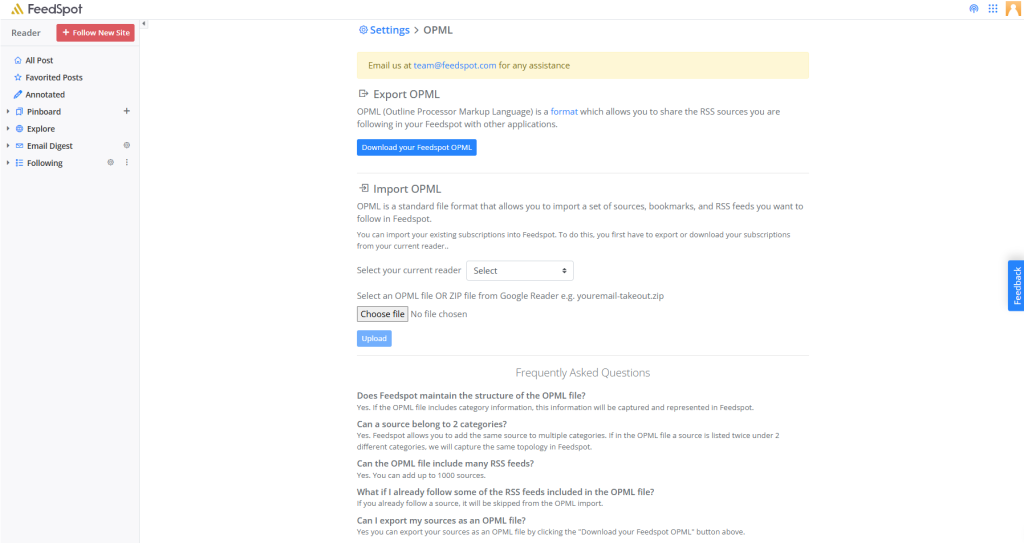
OPML (Outline Processor Markup Language) is the standard format for sharing RSS source lists. Think of it as an export file containing all your followed sources.
Does Structure Transfer?
Yes, the OPML standard includes category information. If your previous reader organized sources into folders and those folders are in the OPML file, FeedSpot will capture and represent that structure. Your “Technology” folder from Feedly becomes a “Technology” folder in FeedSpot.
Importing from Other Readers
If you’re currently using Feedly, Inoreader, or another RSS reader, FeedSpot makes migration seamless through OPML support. Navigate to Account Settings > OPML.
Click “Choose file” under the Import section. Select your OPML or ZIP file from your previous reader (many readers export as ZIP files containing OPML).
Click “Upload” and FeedSpot imports all your sources.
Exporting Your OPML
Click “Download your FeedSpot OPML” to export all your current FeedSpot sources. This creates a file you can import into other applications or use as a backup.
10. Advanced Personalization Features
Navigate to Account Settings and select “Personalize.”
Notes
Toggle “Yes” to display notes at the top of each article. This is particularly valuable if you’re sharing digest emails with team members. Your notes provide context about why each piece matters.
Share to WordPress URL
If you run a WordPress blog, enter your site URL here. Once configured, FeedSpot can publish directly to your WordPress dashboard using the “Press This” plugin.
This is powerful for content curators who maintain blogs aggregating industry news. Instead of manually copying links and excerpts, you schedule posts directly from FeedSpot to your WordPress site.
Share on Mastodon
Add your Mastodon server URL (like “mastodon.social”) to enable one-click sharing to the fediverse.
Email Provider
Choose whether clicking “Email” on an article opens Gmail or your native mail client.
Pin or Save Images
Toggle “Yes” to show a toolbar when you hover over images, providing quick-save options to Pinterest, OneNote, and Evernote.
Twitter Postfix
Add a custom message that automatically appends to every tweet you share from FeedSpot. Many curators use this to tag their account (“via @YourHandle”) or add a branded hashtag.
Custom Sharing
This advanced feature lets you create custom sharing buttons that open specific URLs with parameters you define.
For example, you might create a custom button that:
- Opens your company’s internal knowledge base
- Pre-fills a form with the article title and URL
- Logs the article in your CRM as competitive intelligence
The format follows: https://example.com/post?url={article-url}&title={article-title} FeedSpot replaces {article-url} and {article-title} with actual values when you click your custom button.
Sharing Buttons Configuration
The “Sharing Buttons” section lets you:
- Choose how many buttons appear below each article from the dropdown
- Reorder which platforms appear first
- Connect accounts for one-click sharing (Evernote, OneNote, Instapaper)
11. Mobile Apps
FeedSpot offers native apps for both iOS and Android, extending your reading environment beyond your desktop.
Download Links
From Account Settings > Apps, you’ll see download buttons for:
Mobile Capabilities
The mobile apps provide:
- Full access to your followed sources
- Three view modes (List, Magazine, Card) (Expanded is not supported in app)
- Favoriting and saving to Pinboards
- Annotation capabilities
- Podcast playback
- Offline reading (articles sync when you have connectivity)
The key insight: Mobile isn't just "FeedSpot when you're away from your desk." It's a different reading context with different optimal behaviours. Podcast listening works well on mobile during active tasks. Quick scanning works well on mobile. Deep reading with annotation works better on desktop.
Cross-Device Sync
Everything syncs automatically: Favorites, Pinboards, annotations, read status, podcast progress. Start reading on desktop, finish on mobile. Add sources on mobile, they appear on desktop instantly.
12. The Value Equation
Let’s put this in perspective. A typical social media management tool costs $15-50/month. A brand monitoring service costs $50-200/month. A good RSS reader costs $5-10/month.
You’re getting all three, plus team collaboration features, for $7.99/month (Pro plan) or $9.99/month (Business plan).
If FeedSpot saves you just 5 hours per month on research, reading, and content distribution (conservative estimate), that’s worth hundreds of dollars in opportunity cost.
The 6-Service Bundle
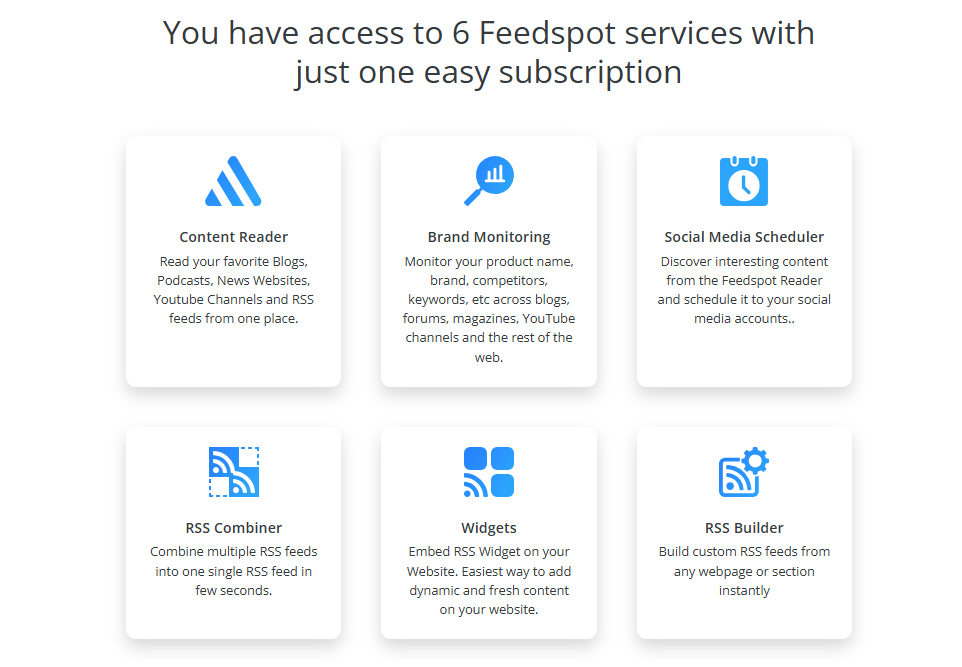
You have access to 6 FeedSpot services with just one easy subscription.
- Content Reader: Follow 1000-5000 sources across all formats
- Brand Monitoring: Track mentions, keywords, competitor activity
- Social Media Scheduler: Manage all social accounts from one dashboard
- RSS Combiner: Combine multiple feeds into unified streams
- Widgets: Embed feed content on your website
- RSS Builder: Create custom RSS feeds
Most users discover FeedSpot for the reader, then realize they’re sitting on five other professional tools included in their subscription.
Support and Resources
If you need help:
- Email support: team@feedspot.com
- Media contact database: anuj@feedspot.com
- Technical issues: Available through Settings > Help & Documentation
The FeedSpot team is highly invested in helping users get maximum value from the platform. Don’t hesitate to reach out with questions.
Why FeedSpot Matters? The Bigger Picture
Let’s step back from features and workflows to discuss why a tool like FeedSpot is essential in today’s information environment.
The Attention Economy Is Hostile
Social media platforms are designed to maximize your time on site, not to inform you effectively. Algorithmic feeds show you what keeps you scrolling, not what you actually need to know. Advertising and engagement metrics drive content selection, not relevance to your goals.
FeedSpot represents the opposite approach. You choose your sources. You control your reading environment. No algorithm decides what you see. No sponsored content interrupts your reading. You’re optimizing for learning and insight, not platform engagement metrics.
Information Fragmentation Is Expensive
The average professional checks 7-10 different sources daily: multiple news sites, industry blogs, social media feeds, newsletters, podcasts. This fragmentation creates:
- Context-switching costs: Every source requires a different login, interface, and interaction pattern
- Attention residue: Your brain doesn’t fully shift when you jump between platforms
- Missed content: Something important appears while you’re checking a different source
- Duplication: You see the same story on three platforms, wasting time
- Overwhelm: The sheer number of places to check creates anxiety
FeedSpot solves fragmentation by creating one unified interface. You check one place, see everything, then move on with your day. This consolidation saves hours weekly and eliminates the nagging feeling you’re missing something.
Curation Is a Professional Skill
In a world drowning in content, the ability to find, filter, organize, and share high-quality information is valuable. FeedSpot turns this abstract skill into concrete capability through:
- Systematic discovery: Explore helps you find quality sources beyond your existing bubble
- Intelligent organization: Pinboards and folders structure information logically
- Persistent annotation: Your insights stay attached to sources permanently
- Efficient distribution: Sharing and scheduling multiply your curation value across networks
Professionals who master information curation become go-to resources in their networks. “I saw this great article about…” becomes “I share a curated digest of the best content in our industry.” The second statement positions you as a thought leader. FeedSpot makes that positioning operationally feasible.
You Own Your Infrastructure
Social media platforms change algorithms. RSS feed services shut down. Bookmark tools get acquired and abandoned. When you build critical workflows on external platforms, you’re vulnerable to their business decisions.
FeedSpot gives you data portability through OPML export. Your sources, your organization, your annotations, everything can be exported and moved if needed. This ownership matters for long-term professional infrastructure.
Final Thoughts
Information is power only when you can find it, understand it, organize it, and apply it. Every other aspect of professional success such as strategy, execution, relationships, reputation, all depends on having the right information at the right time.
FeedSpot doesn’t magically make you smarter or more successful. What it does is remove every operational friction between you and the information you need. It makes the mechanics of staying informed so effortless that you can focus all your cognitive energy on actually thinking about what you’re reading, not on managing the logistics of reading itself.
That shift, from information management to information insight, is the real value FeedSpot provides. Welcome to your new content command centre. Welcome to FeedSpot.
Ready to stop checking bookmarks and start reading? Explore FeedSpot’s discovery tools and build a feed that works for you. Start exploring